Tampilkan postingan dengan label IPad Jailbreak. Tampilkan semua postingan

Minggu, 28 Agustus 2011

How to Jailbreak Your iPad 1 Using RedSn0w (Windows) [4.3.5]

These are instructions on how to jailbreak your iPad 1 on the 4.3.5 firmware using RedSn0w for Windows. The Mac version of this tutorial is here. If you are on 4.3.3 or lower make sure you do NOT update to iOS 4.3.5. Use the untethered JailbreakMe instead. You can find the appropriate JailbreakMe tutorial here.


Step One

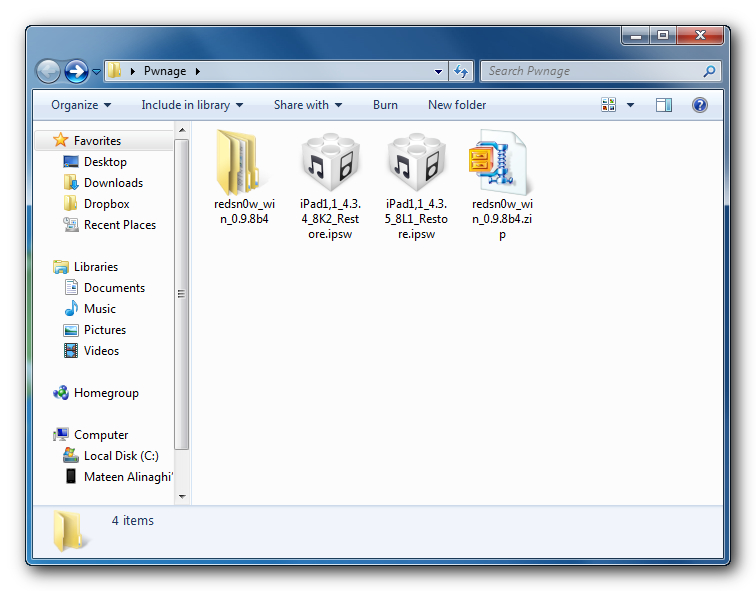
Create a folder on your desktop called Pwnage


Download RedSn0w from here and place it in the Pwnage folder. Likewise, download the latest 4.3.4 and 4.3.5 firmware from below and place it in the same folder.


4.3.4 (iPad 1): iPad1,1_4.3.4_8K2_Restore.ipsw

4.3.5 (iPad 1): iPad1,1_4.3.5_8L1_Restore.ipsw


Extract the RedSn0w zip file into the same folder.


Step Two

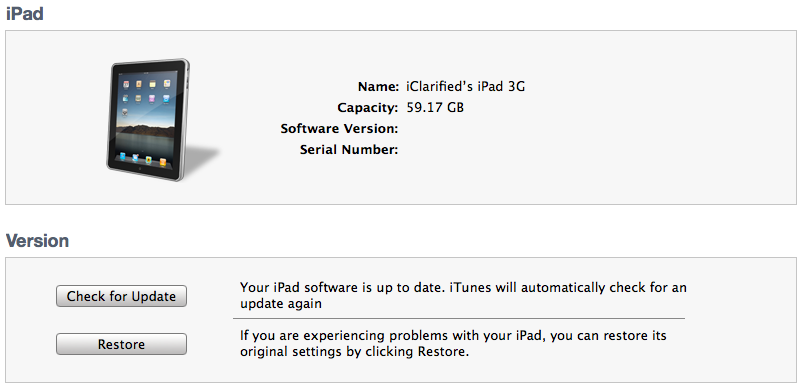
Connect your iPad to the computer and launch iTunes.


Select your iPad from the list of devices on the left. Now hold down Shift and click the Restore button. Restore is preferred as it won't create any wasted space on your iPad.


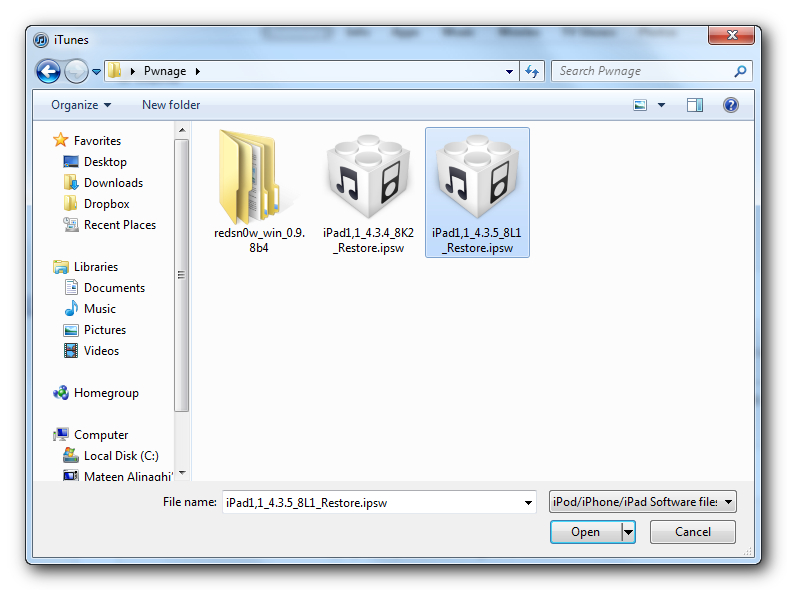
Navigate to the Pwnage folder on your desktop and select the 4.3.5 firmware ipsw. Click the Choose button to continue.


Step Three

Once iTunes has finished updating your iPad to the desired firmware open the Pwnage folder on your desktop and launch the redsn0w application from the redsn0w folder we extracted earlier.


**Windows 7 users may need to run RedSn0w in Vista Compatibility mode. You can do this by right clicking the executable and selecting Properties from the contextual menu.


Step Four

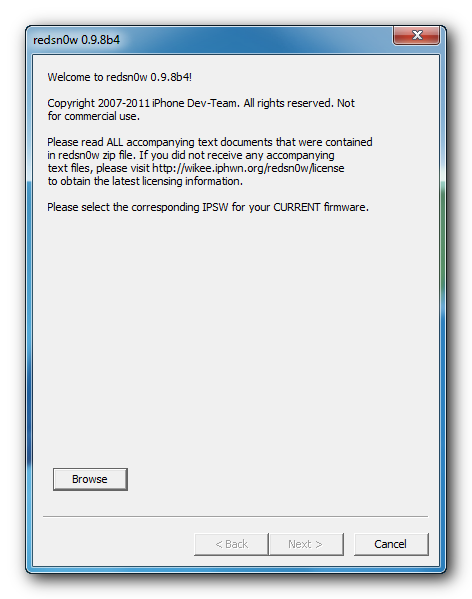
Once RedSn0w opens click the Browse button


Step Five

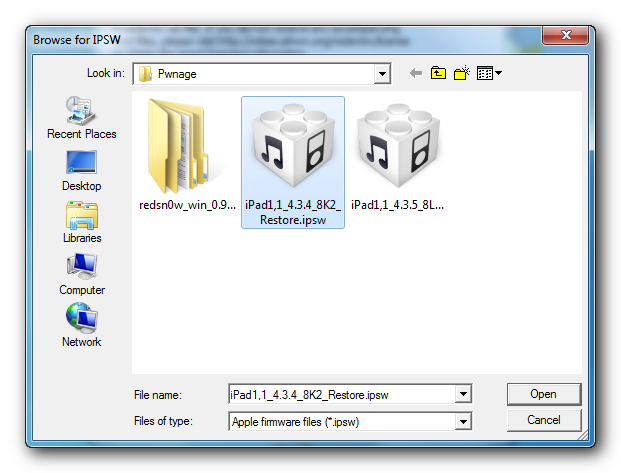
Select the 4.3.5 firmware ipsw we placed in the Pwnage folder on our desktop then click Open.


Step Six

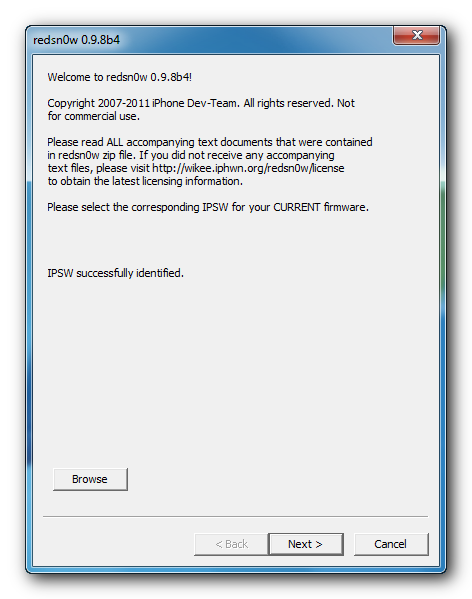
Once the firmware has been verified click the Next button to continue.


Step Seven

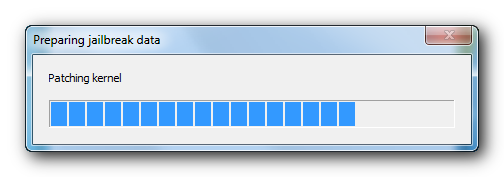
RedSn0w will now prepare the jailbreak data


Step Eight

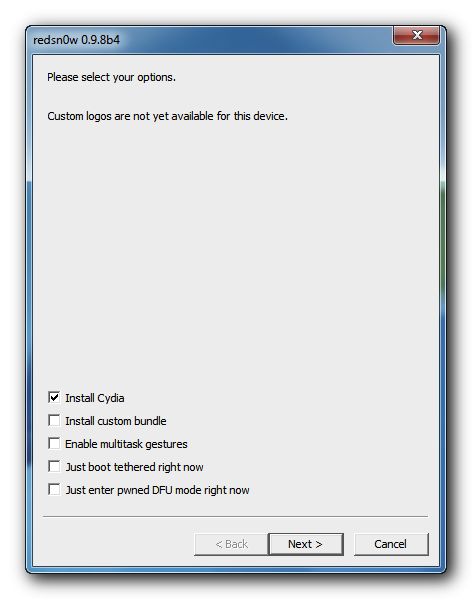
From this window you can select the jailbreak options you would like. Make sure Cydia is selected and click the Next button to continue.


Step Nine

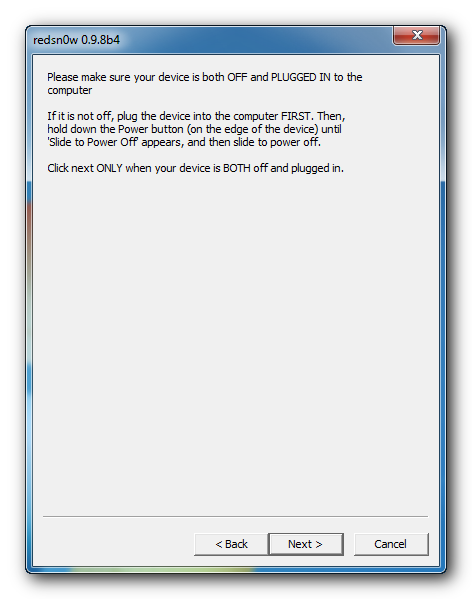
Please plug your iPad into the computer and make sure its OFF then click the Next button


Step Ten

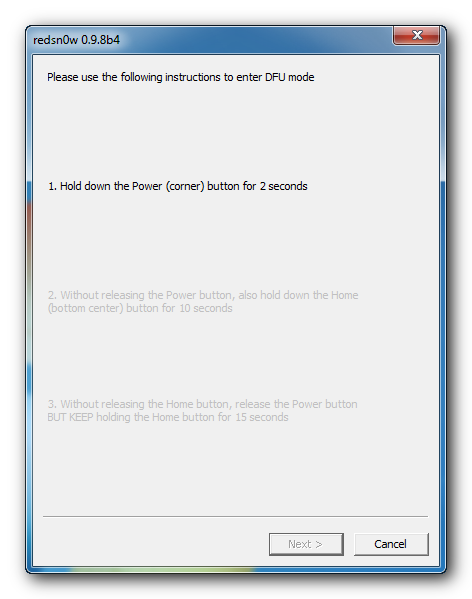
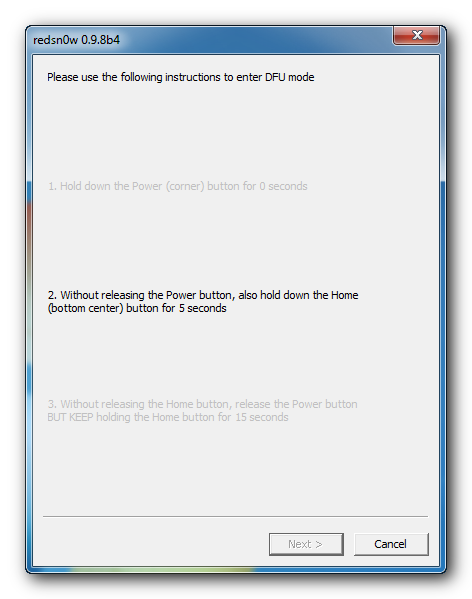
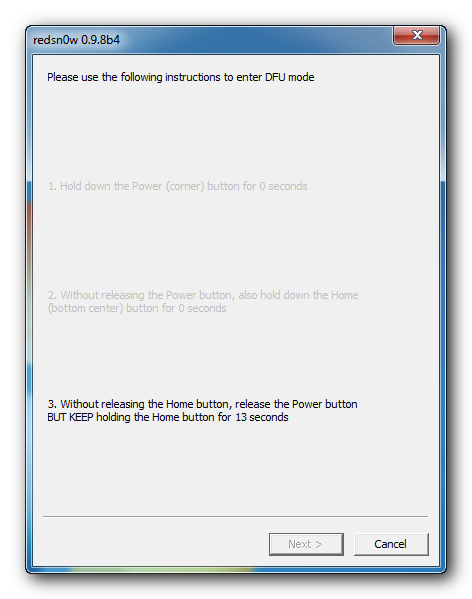
RedSn0w will now guide you through the steps to get into DFU mode. You can find more help with DFU mode here


Hold down both the Home button and the Power button for 10 seconds.


Release the Power button and continue holding the Home button until RedSn0w detects the device.


Step Eleven

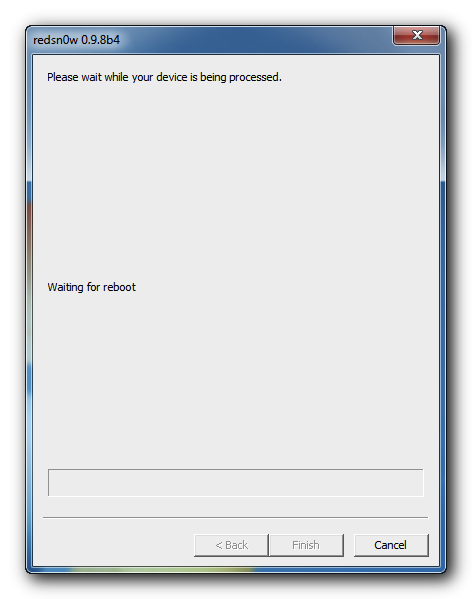
Your iPad will now reboot


Step Twelve

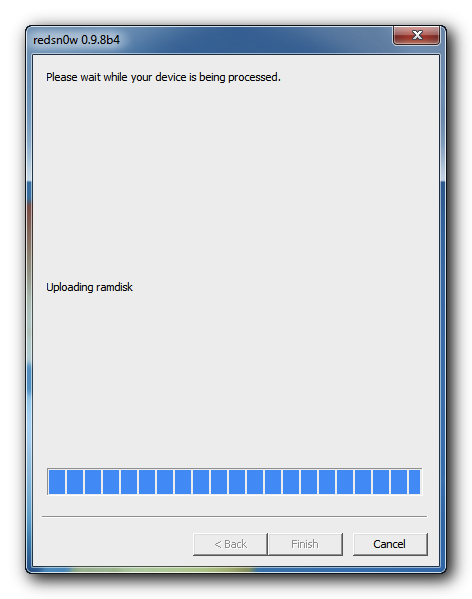
RedSn0w will then begin uploading the new RAM Disk and Kernel.


Step Thirteen

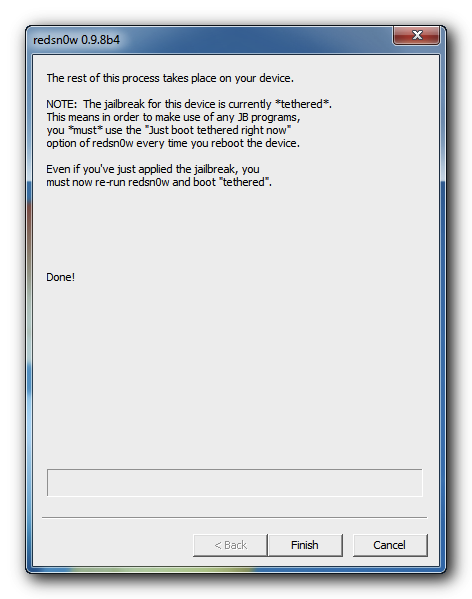
Once this is complete you will be notified that RedSn0w is done. Click the Finish button. When your iPad finishes rebooting (5 minutes or so) it will be jailbroken with Cydia on the SpringBoard.


BOOT TETHERED

Since this is a tethered jailbreak you must use Redsn0w to help you boot back into your jailbroken device if its powered off for any reason. Simply connect your iPhone to the computer, launch RedSn0w, select Just boot tethered right now from the options window and click Next to have RedSn0w boot your device.


*As usual a big thanks to the iPhone Dev-Team for their hard work and contribution to the iPhone community.

**Windows 7 users can try running RedSn0w as an administrator in Windows Vista or XP compatibility mode if you experience any difficulties.
Continue reading →

Rabu, 13 Juli 2011

Sn0wbreeze v2.8 [BETA 6]

Sn0wbreeze v2.8 [BETA 6]


CHANGES:


* Now jailbreaks iOS 5 beta 6.

* Still removes UDID Developer check + Beta timer.

* Still has the ability to hacktivate.

* Still preserves the baseband (as always!).

---------------------------------

Supported Devices and Tethered?

---------------------------------

* iPhone 3GS (old bootrom).....NO

* iPhone 3GS (new bootrom)....YES

* iPhone 4 (GSM)..............YES

* iPhone 4 (CDMA).............YES

* iPod Touch 3G...............YES

* iPod Touch 4................YES

* iPad 1G.....................YES


Continue reading →

Jumat, 13 Mei 2011

iOS 4.3.3 iPad Jailbreak With redsn0w 0.9.6rc15

One of the easiest ways to jailbreak your iPad is with redsn0w from the iPhone Dev Team. You will still need to get your iPad into DFU mode to jailbreak your iPad with the latest version of redsn0w. I am planning to follow up these instructions again with a quick video showing the steps for jailbreaking your iPad with redsn0w.


The 4.3.3 untethered jailbreak works on all devices that support iOS 4.3.3 except for the iPad 2:

iPhone3GS
iPhone4 (GSM)
iPod touch 3G
iPod touch 4G
iPad1
AppleTV2G (v4.3 8F202)

Here are the steps:

Step 1: For this tutorial, you’ll need redsn0w 0.9.6rc15 which you can download from the iPhone Dev Team blog. Make sure you grab the latest version (0.9.6rc15) and just drop it on desktop.

Step 2: You'll need an actual 4.3.3 firmware file. If you don’t know where to find it on your hard drive, just download it to your desktop from here. Make sure you download the iPad file, iOS 4.3.3.

Step 3: Open redsn0w and click on "browse", pull up your 4.3.3 firmware from step 2 and select it.


Step 4: The software will then provide a couple different options before continuing, all you'll likely need is the Cydia icon. Make sure there is a checkmark by "Install Cydia" then just click next.

Step 5: Plug your iPad into your computer and turn it off. Get ready to follow some onscreen instructions as RedSn0w will walk your through a few steps to put your iPad into DFU mode.

Step 6: Once you are successful, redsn0w will begin updating your iPad firmware. This may not happen right away, just turn OFF your iPad, then ON to try it again.

Step 7: Once the software is done loading the exploit, your iPad will restarted, and your home screen should load up with the Cydia icon installed. Success!
Continue reading →

Senin, 09 Mei 2011

PwnageTool For iOS 4.3.3 iPad Jailbreak

Late last week, PwnageTool 4.3.3 was released by the iPhone Dev Team anc can jailbreak your iOS 4.3.3 iPad (or iPhone/iPod Touch/Apple TV). This untethered iPad jailbreak is similar in nature to redsn0w 0.9.6rc15 for an iOS 4.3.3 iPad jailbreak. The main difference is in allowing your iPhone to maintain its old baseband to allow unlocking using ultrasn0w.


Step 1: For this tutorial, you’ll need PwnageTool 4.3.3 (download link) Make sure you get the 4.3.3 version, as it'sthe only one that will work with iOS 4.3.3. You can just download this tool to your desktop for easy retrieval.

Step 2: Load up PwnageTool, select the "iPad/Apple TV" mode and click the blue arrow. PwnageTool with this method should actually locate your iPad firmware on your hard drive for you, so there is no need to download the .ipsw file. Select the iPad firmware then click next.

Step 3: PwnageTool will work it's magic and may take a while.

Step 4: After it is complete, you will be askeed to connect your iPad via USB. PwnageTool will assist you in getting your iPad into DFU mode. You may not get it the 1st try, just wait until PwnageTool is done giving DFU instructions, then click try again. If you did it correctly, it should look like this:


Step 5: Now you can close PwnageTool, then go ahead and open iTunes with your iPad still connected to your computer. Next you should receive this message from Apple:


Step 6: Do not click restore because you will just install Apple’s original firmware. While holding down your Mac’s Option key, click restore. This will open up a window for you to browse and find the file. Select the custom firmware from your Desktop that was created by PwnageTool, and restore it.

Step 7: It could take a little while for iTunes to install the custom firmware on your iPad. After complete, your iPad should reboot itself and the Cydia icon should be on your home screen.

Now you can jump into Cydia and begin to enjoy your jailbroken iPad.
Continue reading →

Sabtu, 07 Mei 2011

iPad 2 Jailbreak Update

The Dev-Team Blog recently shared some light on the iPad 2 Jailbreak...It is the 4th thing of note on the Tic Tac Toe post on the Dev-Team Blog. The prompt and mysterious repair of the comex exploit in the iPad 2 is still baffling, leading many to believe it was leaked to Apple.

The iPad2 jailbreak remains under development. As you may know, the original exploit @comex developed in the first week of the iPad2 release was mysteriously fixed by Apple within days of its development. Partly because of this, don’t expect much public discussion of the iPad2 jailbreak until it’s actually finished and ready for release (and please avoid asking about it). In all liklihood, it will be a userland exploit like the first (unreleased) one, not dependent on bootrom dumps. The first one can’t be released even for those with the original 4.3 firmware due to legal (distribution) reasons.


Also...the Dev-Team post launch the release of redsnow 0.9.6rc15 for all devices running iOS 4.3.3 except the iPad 2.

redsn0w 0.9.6rc15:

OS X Download
Windows Download

iOS 4.3.3 Jailbreak tutorial will be coming this weekend...and will be the same as the steps here in the iOS iPad Jailbreak Video Tutorial
Continue reading →

Sabtu, 09 April 2011

Dfu loop solution for iphone 3gs

here is the fix for ur dfu problems,,..
Need softwares:
1. Tiny umberlla
2. Firmware 4.1
3. Firmware 4.3.3
4.redsn0w 9.6xxx
5 itunes


step 1.
Open ur tiny umberlla and start tss service
step 2.. Open redsn0w and select 4.1 firmware and conncet ur phone with dfu loop phone,, then just tick juest enter pwned dfu mode.. And finish it... Now ur phone pwned dfu mode.

Step3.. Now open itunes and restore with official 4.1 firmware.. Will flash ur phone and end with 1015 error.... And dfu mode again...

Step 4... Very important one now close ur tiny umberlla
step 5...open ur itunes now and restore with 4.3.3 official firmware (dont use pwned dfu now and dont use tiny umberlla.. This mistake lead us to dfu mood again)... Again ends with 1015 error and ur phone now diplay low battery symbol or recovery mode.. No problem...(if u have low battery symbol.. Wait to charge for sometime)

step 5... Now use redsn0w with 4.3.3 and tick and jailbrake it...

Struck while jailbraking ,,, now again repeat the same procedure


now ur phone will be activated and work fine ... Now use ultrasnow to unlock from cydia... Now ur phone is unlocked and untechred .... Reply me ....
Continue reading →

Jumat, 04 Februari 2011

Unlock iPhone 4 on iOS 4.2.1 / 1.59.00 Baseband after Jailbreak with Greenpois0n RC5 [How to Guide]

kNow you can update your iPhone 4 to iOS 4.2.1 with preserving 1.59.00 baseband, which means that you will be able to unlock your iPhone 4 with ultrasn0w 1.2. Let's check out the full step by step guide after the jump


STEP 1: Download TinyUmbrella from here.

STEP 2: Open TinyUmbrella then click on "Start TSS Server"

STEP 3: Open iTunes.

STEP 4: Now, Click on "Restore" NOT "Update"

STEP 5: Now you will get "Error 1013" which means that your baseband has been preserved.

STEP 6: Exit iTunes.

STEP 7: Now you have to jailbreak your iPhone 4 with the Greenpois0n RC5, follow our guide posted here.

STEP 8: Finally you can unlock your iPhone 4 running baseband 1.59.00 using Ultrasn0w 1.2, follow our guide posted here.

Note: this guide is only work with iPhone 4.
Continue reading →

Kamis, 03 Februari 2011

Untethered Jailbreak for iOS 4.2.1, GreenPois0n RC5

Finally greenpois0n and an untethered jailbreak for the iPad is available for iOS 4.2.1.

The best part about this jailbreak is that it is untethered jailbreak...NOW YOU CAN FINALLY reboot your iPad without having to jailbreak it again. With earlier jailbreaks, whenever you rebooted your iPad, it would go into DFU mode requiring another jailbreak it to refresh it.


For those that have been relying on ultrasn0w for a carrier unlock on the iPhone, you should hold off on this jailbreak as it will update your baseband and likely lock your iPhone.


Instructions to jailbreak your iPad, iPod Touch or iPhone...

Step 1: Download greenPois0n from this link.

Step 2: Connect your iPad with USB to your computer and click “Prepare to Jailbreak (DFU)”

Step 3: Follow the onscreen instructions to enter your iPad into DFU mode:
  • Press and hold the sleep button (2 seconds)
  • Continue holding sleep; press and hold home (10 seconds)
  • Release sleep button; continue holding home (15 seconds)
Step 4: Now your iPad is ready to jailbreak. Click “Jailbreak”

Step 5: Your iPad is now successfully jailbroken on iOS 4.2.1. Start “Loader” found on the homescreen to install Cydia. Be sure to check out the ThemeCenter and new manage account features in Cydia as well.
Continue reading →