Senin, 05 Desember 2011

Jailbreak news: Unsafe Siri iPhone 4 port debuts on Cydia, iOS 5 downgrade via iFaith


We know Apple previously tested Siri on iPhone 4 and older devices but hasn’t enabled the voice recognition software to work on customers’ iOS devices released before the iPhone 4S. Meanwhile however, the hacking community cracked Apple’s digital secretary to work on jailbroken devices and ported the dictation feature to iPhone 4. And now, it looks like a Chinese hacker group called CD-Team was able to create the first fully-featured Siri port. Called H1Siri, it’s already available on Cydia, a third-party store carrying unsanctioned software for jailbroken devices. The hack lets you use the full range of Siri features on both jailbroken fourth-generation iPod touch and GSM/CDMA iPhone 4 running either iOS 5.0 or the latest 5.0.1 version.

According to iClarified, the 100MB download is available via both Cydia.be and iphone3gsystem.fr/cydia repositories (select Manage > Sources > Edit in Cydia, add the sources and do a search for H1Siri). Be advised that H1Siri comes from a relatively unknown party and contains cracks so it’s likely illegal. Also note it passes your personal information to a shady third-party server. If you’re interested, a how-to guide is available here. Some think the hack takes advantage of SiriProxy, a proxy server that fools Siri into believing it is talking to Apple’s servers.


Please note that we couldn’t determine at press time the magic behind this tweak and some users reported intermittent connectivity issues, another indication of H1Siri talking to a third-party proxy server rather than communicate with the Apple cloud directly. The Siri Proxy project has been used to enable interesting uses, from managing a radio-controlled thermostat to controlling your Plex media center to starting your car.

As for jailbreaking, those waiting for an untethered iOS 5 jailbreak will be happy to know that a new tool is now available for easy downgrading to iOS 5.0…


Called iFaith, a Windows application, it lets you circumvent Apple’s restricted downgrade system which prevents people from downgrading their devices to an older iOS 5.x firmware. The new version, iFaith 1.4, works around that Apple-imposed limitation by permitting unsigned restores based on dumped iOS 5 signature hash blobs. This is important because, as noted by MuscleNerd, an upcoming untethered iOS 5 jailbreak might require iFait for user restores. According to the iFaith developer, iH8sn0w, it is possible to restore to iOS 5.0.1 and preserve iPhone 4 baseband by dumping the blobs with iFaith first. The tool does not support A5 devices yet. Because the sn0wbreeze tool (another iH8sn0w’s creation) isn’t capable of iFaith blobs yet, users are advised to use the redsn0w app. More information in iH8sn0w’s video tour included below. As for Siri, an iPhone 4S exclusive that currently understands and can speak English, French and German, Apple says “in 2012, Siri will support additional languages, including Japanese, Chinese, Korean, Italian, and Spanish”. Apple’s language technologies engineers are already hard at work developing Siri for the Chinese market.
Continue reading →

Sabtu, 03 Desember 2011

Jailbreak Your Apple TV 2G Using Seas0nPass (Mac) [4.4.3]


These are instructions on how to jailbreak your Apple TV 2G on iOS 4.4.3 using Seas0nPass. Please note this a tethered jailbreak and will require the help of a computer to reboot your device if it's powered off.

Step One
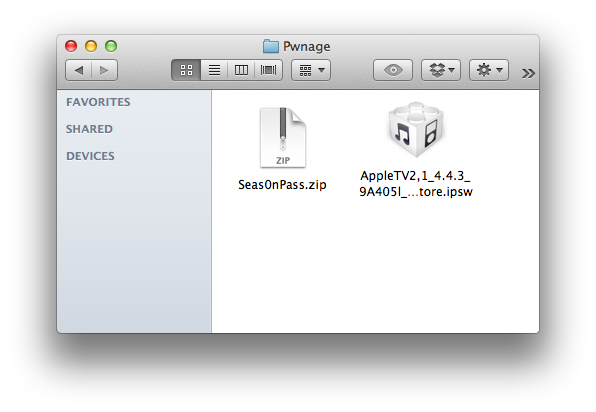
Create a Pwnage folder on your desktop. Download and place the latest version of Seas0nPass and the Apple TV 4.4.3 firmware ipsw into the folder.
- Seas0nPass
- Apple TV Firmware


Step Two
Double click the Seas0nPass archive to extract it. Then double click the extracted Seas0nPass application to launch it.


Step Three
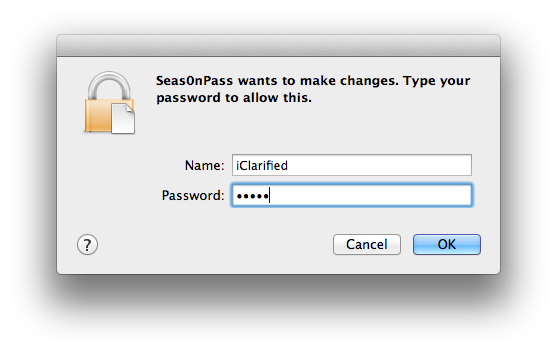
When prompted, input your administrative username and password then click the OK button.


Step Four
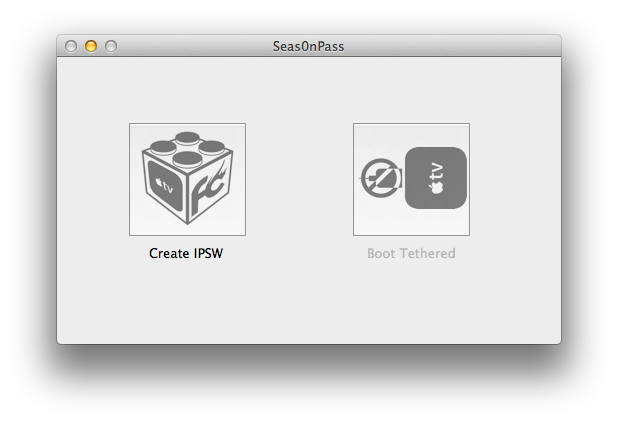
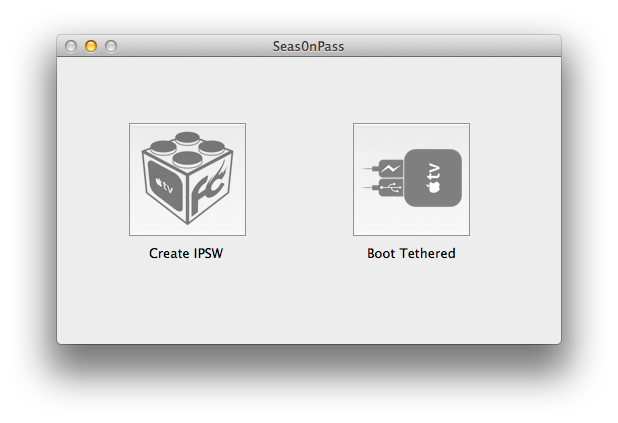
Hold down the Option key and click the Create IPSW button.


Step Five
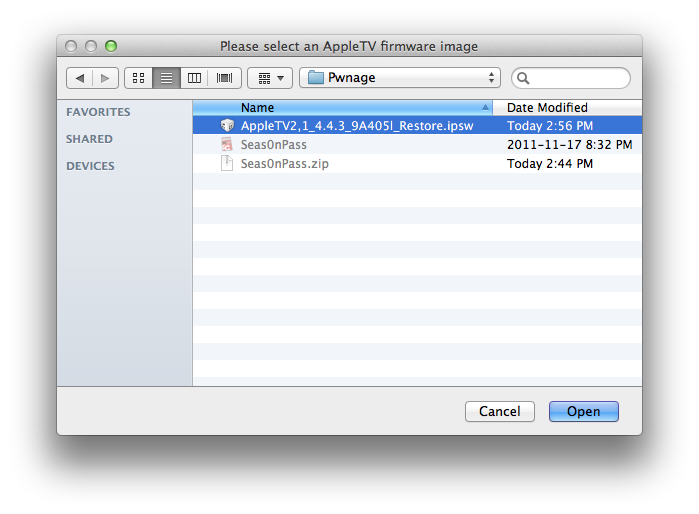
Select the Apple TV ipsw from the Pwnage folder on your desktop and click the Open button.


Step Six
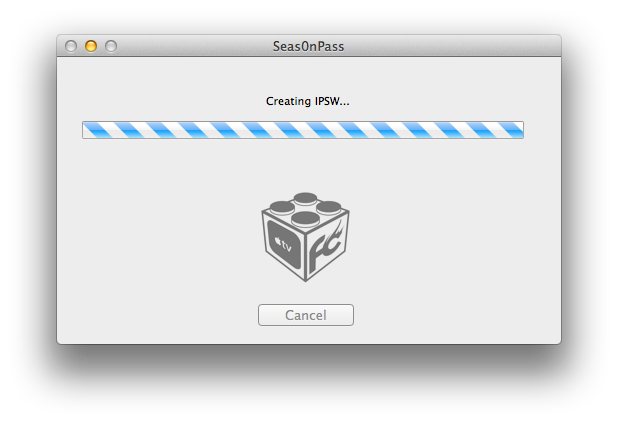
Seas0nPass will now prepare your custom IPSW.


Step Seven
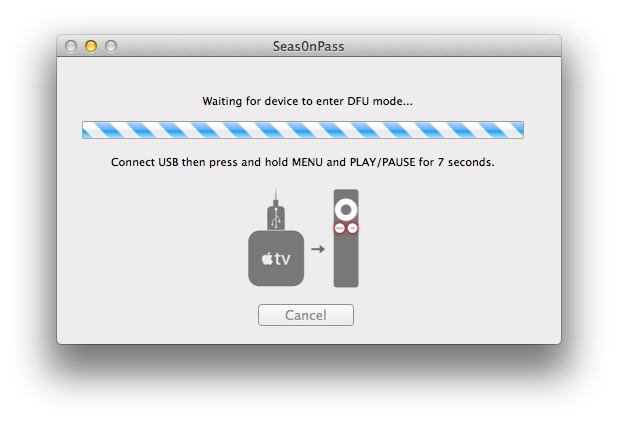
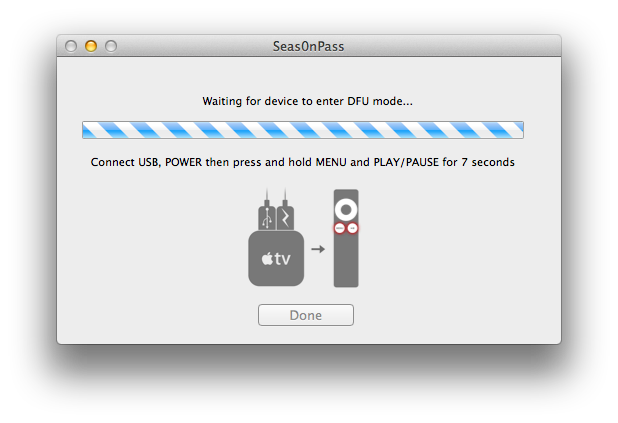
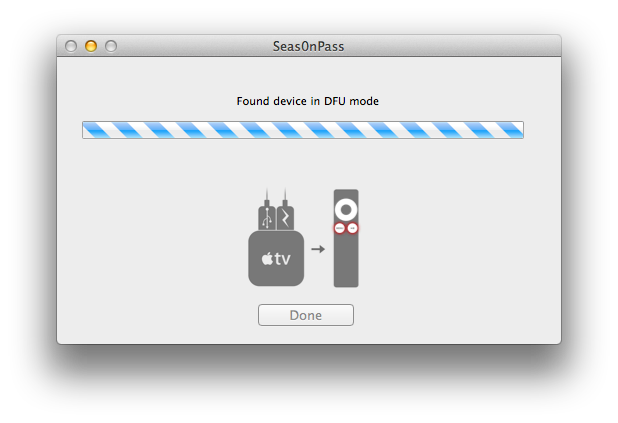
Once your custom IPSW file has been created, Seas0nPass will ask you to connect the Apple TV to your computer via a micro-USB cable and use the remote to put it into DFU mode by holding MENU and PLAY/PAUSE for 7 seconds. The power cable should be unplugged during this process. Immediately hold the buttons after inserting the USB cable.


Step Eight
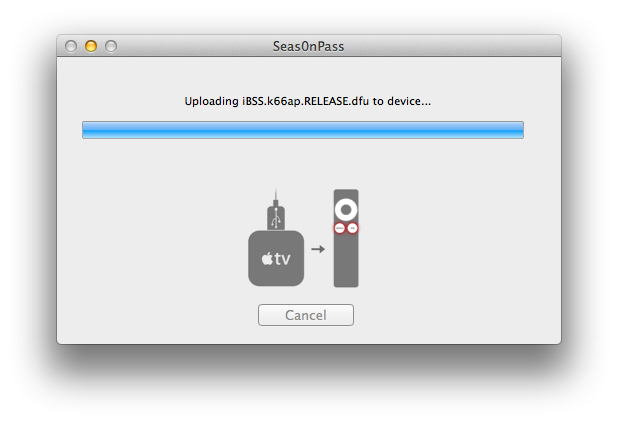
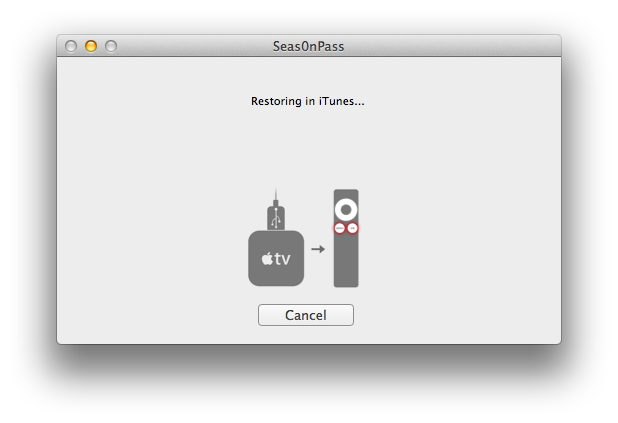
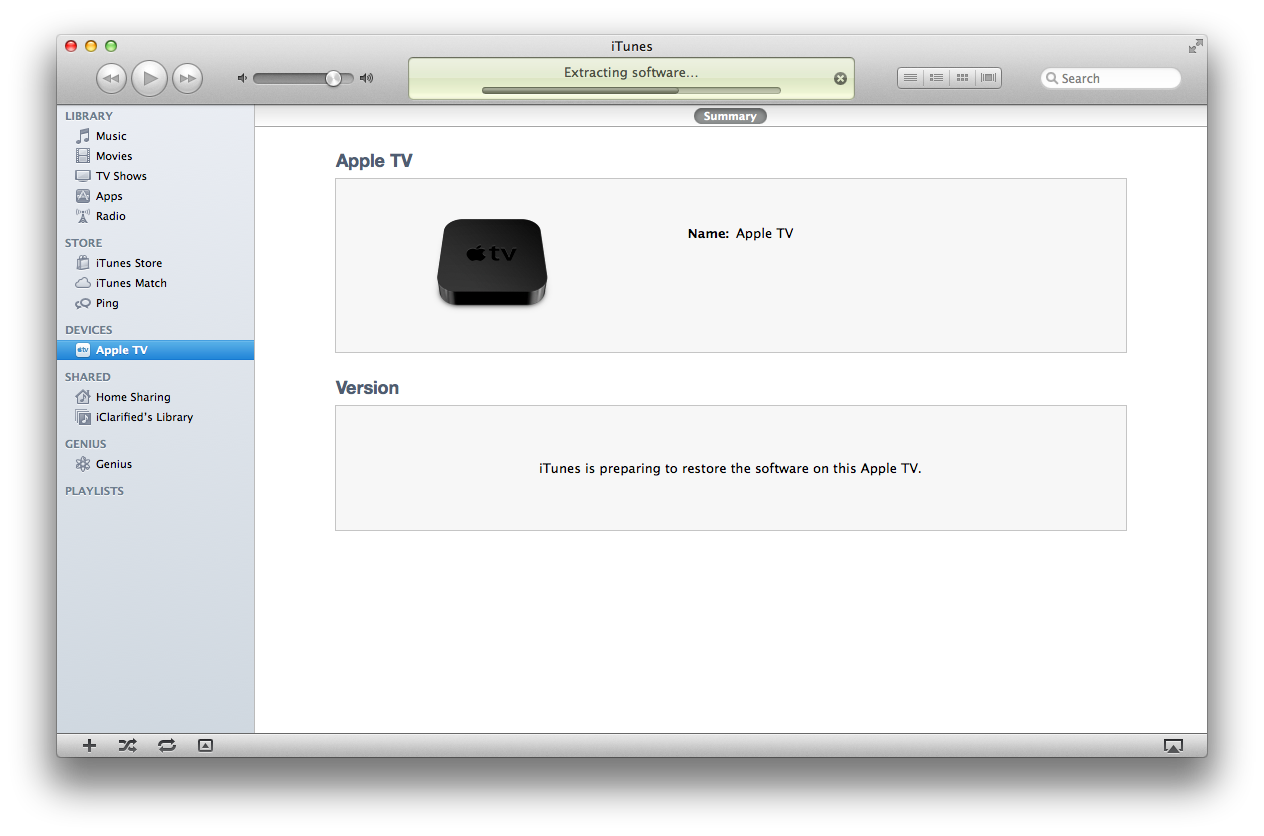
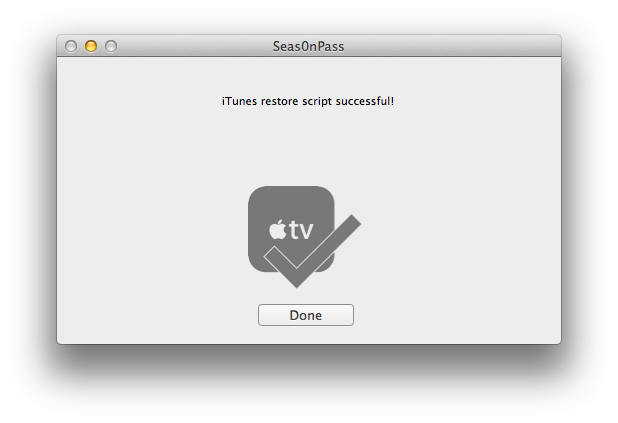
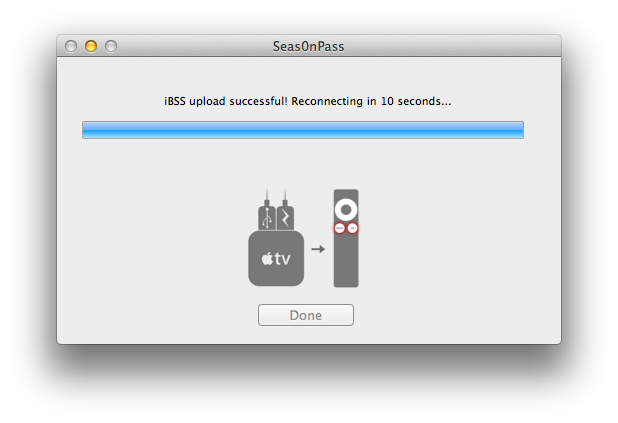
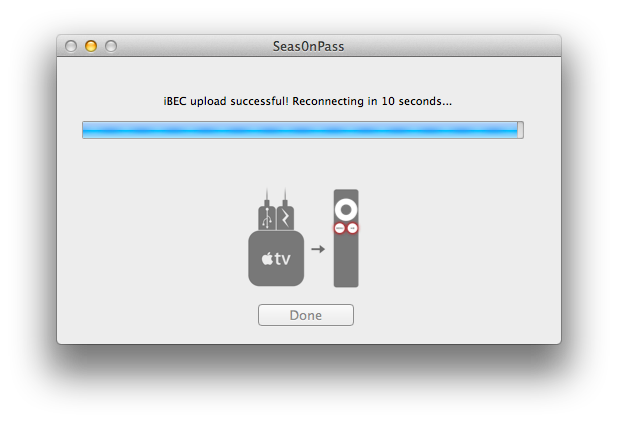
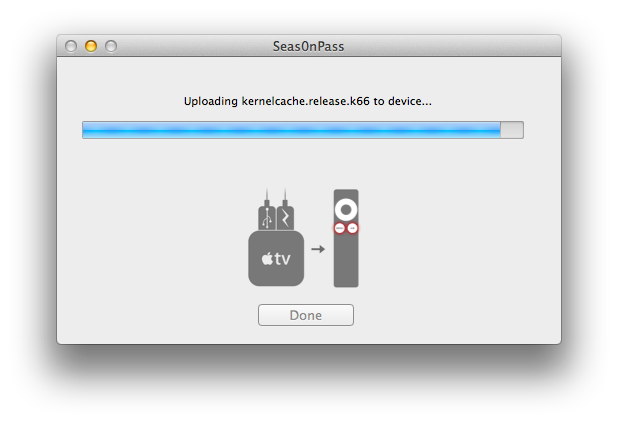
Once your Apple TV has been detected in DFU mode, Seas0nPass will upload some files, automatically launch iTunes, and beginning restoring to the new firmware.


BOOT TETHERED
To boot your Apple TV you will need to follow these instructions.

Step One
Launch Seas0nPass by double clicking its icon.


Step Two
Select Boot Tethered from the main menu.


Step Three
Connect the Apple TV to the computer via USB, plug it into the power outlet, and hold MENU and PLAY/PAUSE on the Apple TV remote for 7 seconds.


Step Four
Seas0nPass will detect the device in DFU mode and begin the boot process.


Step Five
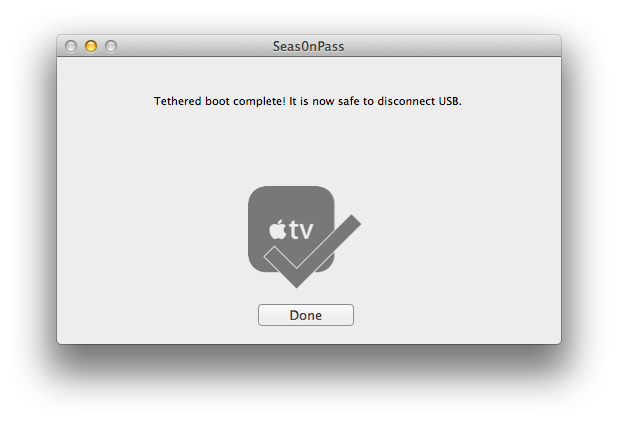
Once the tethered boot is complete you can remove the USB cable and connect the HDMI cable to begin using your jailbroken device!


Continue reading →

Safari 5.1.2 Is Now Released By Apple With [Along Bug Fixes]

Recently Apple releases safari 5.1.2 with more improvements and updates to fix bugs.From today you can say Good-bye for bugs and live in security while browsing at your iphone.

Apple has released Safari 5.1.2 to users this afternoon, available by direct download or by hitting up Software Update. The update is relatively minor, but brings along bug fixes that address issues of stability, extensive memory usage, fixing web pages that were flashing white, and now allows PDFs to be displayed within web content. Go ahead and download!
The update is including fixes that :

  • Improve stability 
  • Allow PDFs to be displayed within web content
  • Address issues that could cause hangs and excessive memory usage
  • Address issues that could cause web pages to flash white
Continue reading →

Apple seeds updated OS X 10.7.3 (build 11D24) to developers (Update: back up)


Update: Apple once pulled the 10.7.3 update, but is now back up.

Apple has begun seeding an updated OS X 10.7.3 (build 11D24) to developers this afternoon. The update comes after Apple’s first release of 10.7.3 two weeks ago, and bringing bug fixes into the mix. Apple has also added Spotlight and Safari to the list of areas they would like developers to focus on. In the initial release, Apple originally asked developers’ attention in iCloud Document Storage, Address Book, iCal, and Mail.
It’s not clear when a public release of 10.7.3 will hit Software Update, but in the mean time go ahead and download the update from the Dev Center.
Continue reading →

Find Your Cydia Account Number

You might find it meaningless about knowing how you can find your Cydia Account Number but you should realize that it's really important for you to know it especially for give-aways.

Click here to enlarge
The below video will show how easily you can find your Cydia Account Number by just going through three simple steps.


Finding Your Cydia Account Number in just 3 Simple and Easy Steps

Step 1: Open Cydia (Your device should be jailbroken).

Step 2 : Click the Manage Account on the main Cydia Tab and by using Google or Facebook, verify your account. You are likely to have one if you have made purchase of any app or tweak via Cydia.

Step 3 : Next below the 'Installable Purchase' panel you will see your Cydia Account Number in small text once you've logged in. For reference in future, jot it down.

When you are in to participate in a jailbreak app or tweak giveaways, it's helpful to know it. Thus its important to know it!
Continue reading →

Unlock iPhone 3GS On iOS 5.0.1 By Patching Ultrasn0w 1.2.4

iOS 5.0.1 is out from past couple of weeks but still an Ultrasn0w update has not been released in order to unlock iPhone 3GS with BB 6.15.00 on it. A lot of users who restored iOS 5.0.1 on their iPhone 3GS but rely on unlock were stuck with a “No Service” error on their Home Screen. Yesterday we posted about Ultrasn0w fixer which is a third party solution to unlock your iPhone 4 and iPhone 3GS on iOS 5.0.1 but that solution is having some problem. Some people were getting dependency issues and even developers of that tweak refused release a fix for it.
Anyhow, folks over BiPR came up with a brilliant manual Ultrasn0w patch which will fix ultrasn0w 1.2.4 and make it work on iPhone 3GS running iOS 5.0.1. Don’t panic it’s an easy process and we tried it personally and we can confirm that it works for iPhone 3GS iOS 5.0.1.
Important: By following this method you can ONLY unlock iPhone 3GS running iOS 5.0.1 with iPad’s baseband 6.15.00 (which most of iPhone 3GS users are running now). DO NOT try it on iPhone 4.
How To Unlock iPhone 3GS On iOS 5.0.1 BB 6.15.00 By Patching Ultrasn0w 1.2.4:
Things you will need during this process:
  • Jailbroken iPhone 3GS running iOS 5.0.1 with baseband 6.15.00 (If you’re not jailbroken on iOS 5.0.1 you can follow our complete step by step guide to jailbreak it using Sn0wbreeze )
  • Ultrasn0w 1.2.4 patch file (Download)
  • iFile (if you don’t have it in your iPhone you can get it by adding xSellize Repo repo )
  • iExplorer (Download for Windows | Mac)
Before you begin: Take out SIM card from your iPhone
Step 1: Download Ultrasn0w 1.2.4 patch file from the link above and extract it on your desktop.
Step 2: Connect your iPhone 3GS to computer via USB cable.
Step 3: Run iExplorer which you downloaded from the link above, it will automatically detect your iPhone 3GS and display your iPhone 3GS’s files in Windows Explorer like view.
Step 4: Navigate to
raw file system/System/Library/Frameworks/CoreTelephony.framework/Support/
Step 5: Before making further changes, back-up CommCentreClassic file by renaming it to CommCentreClassicOld and to be on the safe side save a copy of it locally on your computer as well.
Step 6: Copy and Paste CommCentreClassic file which you downloaded and extracted on desktop in Step 1
Step 7: Now let’s get back on your iPhone 3GS, launch iFile on your iPhone 3GS and navigate to :
System/Library/Frameworks/CoreTelephony.framework/Support/
Step 8: Tap on commcenterclassic, click the Blue arrow next to the file name, go to Access Permissions and set the following permissions:
  • User: Read, Write, Execute
  • Group: Read, Execute
  • Global: Read, Execute
Step 9: Launch Cydia from your iPhone 3GS’s homescreen and install ultrasn0w 1.2.4 from there.
Step 10: Disable 3G option and Cell Data Network under Settings > General >Network. Now you can insert your SIM card
BOOM! You iPhone 3GS with baseband 6.15.00 should be unlocked on iOS 5.0.1 now.
If you face any problems during this process feel free to contact us, we’ve tested this process and we can confirm that it works perfectly fine.

If an Ultrasn0w update comes for iOS 5.0.1 which is expected very soon all you have to do is replace the patched file with your back-up file and re-run ultrasn0w
Continue reading →

Free Check iPhone Opertor and Country (do it yourself) MAC

iTools 2011 Beta [Mac]


Click here to enlarge


iTools 2011 Beta Mac

What's New:

1. Supports devices: iPhone 1,3G,3GS,4,4S iPad 1,2 iPod touch 1,2,3,4
2. Supports iOS versions: iOS 1, 2, 3, 4, 5
3. Works with both Jailbreaked & unJailbreaked devices.
4. Applications management.Supports install, uninstall, backup, update.
5. Media Files management.
a. Supports Music, Video, Ringtone, Podcast, iTunes U, TV Shows Audio books, Music Video & Voice memos
b. Imports & exports media files from computer to devices
c. Transforms mp3 into m4r when drop mp3 files into Ringtone.
d. Transfroms video files into mp4 when drop into Video
e. Searchs lyrics & covers from internet.(iOS 5 not support yet)
f. Plays mp3 files on the device
6. iBooks Supports: Imports and exports PDFs/Epubs.
7. Photos and Ablums management : Imports and exports.
8. Manages docking & desktop by mouse.
a. Smart classify supports automatic classify icons into folders named by system category.
b. Docking & desktop Folders and positions backup and restore.
9. Filesystem managmenets
a. plist file editor
b. Favorite
c. Cydia & installous
d. Storage
10. Personal Information Managments(Contacts, Message, Notes, Safari bookmarks, Callhistory)
a. Imports & exports into csv/outlook
b. Personal inforbackup & restore.
11. System Tools:
a. SSH Tunnel
b. Clean up
c. System logs
Free Here  http://www.guarforum.net/gsmreport/showthread.php?t=136655

Attached Files Attached Files
Continue reading →