With a lot of people running the iOS 5 beta series firmware, I am sure downgrading back down to the official iOS 4.3.5 firmware has crossed your mind. If this sounds like you, you will be glad to know that the process of downgrading back to the iOS 4.3.5 firmware is extremely simple. It does not involve changing your hosts file or using the application TinyUmbrella and it doesn’t require you to have saved SHSH blobs. This is because the iOS 4.3.5 firmware is the latest official firmware available.
Note: The iOS 4.3.5 firmware can be Jailbroken but it is a tethered Jailbreak. Follow our step-by-step guides in our
How To Jailbreak section.
You can follow the straightforward guide below for downgrading your iPhone, iPod Touch or iPad running the iOS 5 Beta 1, iOS 5 Beta 2, iOS 5 Beta 3, iOS 5 Beta 4, iOS 5 Beta 5, iOS 5 Beta 6 or iOS 5 Beta 7 firmware to the iOS 4.3.5 firmware.
Downgrading From iOS 5 Beta 1 – 7 To iOS 4.3.5
Step 1) - The first thing you are going to need to do is ensure you are running the latest development version of iTunes on your computer (which will be iTunes 10.5 beta 7). You can download iTunes 10.5 beta 7 for Windows and Mac OS X from the Apple Dev Center.
Step 2) – Once you have ensured you are running the latest version of iTunes on your computer you will need to make sure you have access to the iOS 4.3.5 firmware. If you need to download this firmware file you can go to the iJailbreak Downloads Section.
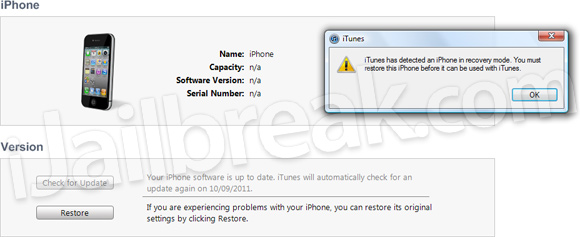
Step 3) – Now comes the hardest part; You must put your iPhone, iPod Touch or iPad into DFU mode. This is done by doing the following:If you enter DFU mode correctly iTunes will open telling you that that you must restore your iPhone, iPod Touch or iPad.
- Turn your iPhone, iPod Touch or iPad off.
- Hold the Power and Home Button for exactly 10 seconds.
- Once you Hold the Power and Home Button for 10 seconds release the Power Button and continue holding the Home Button for up to 30 seconds
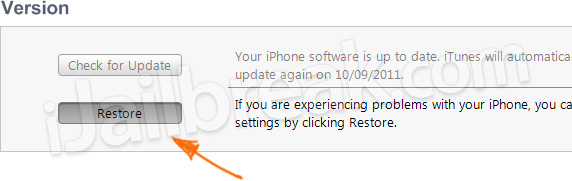
Step 4) - With iTunes open press Shift+Restore (Windows) or Option+Restore (Mac) and select the iOS 4.3.5 firmware file. Upon doing this your iPhone, iPod Touch or iPad will begin restoring itself to the iOS 4.3.5 firmware without any problems as the iOS 4.3.5 firmware is the latest official firmware.For more downgrading guides visit our How To Downgrade section. Let us know if you had any problems in the comments section below…
Sabtu, 15 Oktober 2011
How To: Downgrade From iOS 5 Beta To iOS 4.3.5 Without Saved SHSH Blobs

Jumat, 14 Oktober 2011

How to Downgrade iOS 5 Back to iOS 4.3.3
sherif_hashim
also since no money is involved, u can expect a malicious content, & iPad2 on 4.3.3 with no shsh saved may lose their jailbreak for good
Tutorial [Video]
The latter was a complete deal breaker for me, and of course since you can’t jailbreak just yet, I decided to head back down to iOS 4.3.3 on my iPhone 4.
The only problem with that decision is that it isn’t as straight forward as one would like it to be. I was met with an iTunes error (1) recovery loop while trying to downgrade to iOS 4.3.3. Sadly the screenshots I took of the error were lost, so I don’t have those available.
That being said, you can definitely downgrade your iPhone back to iOS 4.3.3 from iOS 5; I’ve done it, and I can confirm it works. The nice thing is that not only does this tutorial help you downgrade, you also jailbreak your iPhone, killing two birds with one stone. Check out the full tutorial after the break…
Step 1: Place your iPhone running iOS 5 into DFU mode. You can watch the following video to learn how to do so if you’re not sure.
How to put your iPhone into DFU mode
Step 2: Restore your iPhone to iOS 4.3.3 (Apple is still signing this firmware as of this writing of course, because it is the latest firmware). iTunes (10.3) should automatically recognize that your device is in DFU Mode, and will bring up the options to restore.
Click OK

Click Restore

Click Restore and Update

You can click restore and update in this instance, because iOS 4.3.3 is the latest publicly available firmware. Note: This will of course change if Apple releases an iOS 4.3.4+ so keep that in mind. In that case, you do not want to update, especially if there is no available jailbreak. If you’ve already previously downloaded iOS 4.3.3, it should start extracting the software and restoring your iPhone with no problem.
Step 3: Once you get near the very end of the restore, you will likely receive an iTunes error (1) recovery loop dialogue error. This can be disheartening to receive this over and over. Don’t fret though, we have a fix, and it’s called RedSn0w.
Step 4: Download the latest version of RedSn0w [Mac] from the Dev Team’s Blog, and extract the contents on your desktop. Now simply use the following video tutorial to run RedSn0w on your device. It’s a good idea to go ahead and put your iPhone back into DFU mode before proceeding.
How to jailbreak iOS 4.3.3 with RedSn0w for the Mac
Step 5: The only problem I encountered with running RedSn0w is that it froze up on the “Installing Activation Bundles” screen. If you wait more than five minutes, and it’s still frozen, simply follow this tutorial to fix it using TinyUmbrella to exit the recovery loop.
How to Fix the “Installing Activation Bundles” Freeze When Jailbreaking With RedSn0w
So folks, that’s it! That’s how you downgrade iOS 5 back to iOS 4.3.3. I hope that this tutorial was helpful for you and that it was easy to follow along.
Let me know if you have any tips or suggestions and report back in the comments section.
iOS 4.3.3 has just released to fix tracking issue founded recently on iOS devices. iOS 4.3.3 is available for download for iPhone 4, iPhone 3GS, iPod touch 4G, iPod touch 3G, iPad 1 and iPad 2.

IOS 5 Custom iPhone Firmware (Activated) Jailbreaked
::::NEW:::::iphone 4 IOS 5 Custom Firmware (Activated) Jailbreaked:::::NEW:::::
iphone 4 IOS 5 Custom Firmware (Activated) JailbreakediBooty-for-5.0


Safe -- The Complete Guide to Updating to iOS 5
iOS 5 is finally here of your iPhone, iPod touch, or iPad. Now what? With the flurry of features and updates being dropped today and yesterday the whole thing can be a confusing mess. Here's the best way to get up to speed and enjoy Apple's latest iOS.
While you're getting ready to update, remember that Apple's servers are getting hammered right now with downloads, people registering for iCloud and iOS 5 updates. If you're getting server error 3200 while attempting to update, or if your downloads are taking entirely too long for you, just relax. As traffic subsides the errors and download issues will go away and you'll be able to add images to Photo Stream in no time.
Update your Mac or PC
Before you update your iPhone, you'll want to grab a few updates. First update iTunes to 10.5. You'll need that update in order to actually installed iOS 5 on your device. For iCloud features, update Lion to 10.7.2 and iPhoto to 9.2. Lion and iTunes can be updated using Software Update, while iPhoto requires you to use the Mac App Store. If you're on a Windows machine, you need to download the iCloud control panel. Or you can skip all that and download the updates manually with the links below. And, this should go without saying BUT we're saying it 'cause you might need us to: Back everything up first!
Lion 10.7.2
iPhoto 9.2
iTunes 10.5
iCloud control panel for Windows
iOS 5 update
Before hitting the Check for Update button, you'll want to backup. You can manually force your iOS device to backup when you plug it in. Right-click on your device in the left-hand column in iTunes. Select Backup. Let iTunes do its magic before going forward. If something goes horribly wrong during the update, you'll thank me for this.
(This would be a good time to do a backup of your whole machine too.)
Now lets download the iOS 5 update. You can manually download the update here, or you can just plug your iOS device into iTunes and Check for Update. At this point you have to make a decision. Do you want to just do the normal update, or go for the clean install with Restore.
The Check for Update install will download iOS 5 to your machine, your device will restart and the installation will begin. It might take a while to download the update, but the install should only take about 15-20 minutes. After a few restarts your device will be ready to go.
The Restore button will completely erase your device, apply the update, then sync all your backed up settings, apps, photos, and music to you device. This is helpful if you're having problems with your device or you just want the peace of mind that a clean install gives. To update this way, just hit the Restore button and iOS 5 will be downloaded like above. Because you've completely erased your device, the initial sync could take hours depending on the amount of apps and music you have on your device. What's nice is that as long as your device is plugged into iTunes, with iOS 5 you can continue the set up without interrupting the sync.
iCloud
While you're updating your iOS device, head to System Preferences and click on the iCloud preference to set up your free account.
If you're new to Apple's cloud services, use your Apple ID (the ID you use to buy music and apps from iTunes and the App Store) to sign in or set up a new one. You'll need iCloud for some of Apple's new iOS features like Photo Stream, Find my Mac, cloud backup of your iOS device, and Find My Friend. After sign up, you'll use the iCloud system preference to choose which features you want to utilize.
If you're migrating from from MobileMe, it'll take a few minutes to migrate to the new service. Whether you move to iCloud or not, Apple intends on killing off iDisk, iWeb pages, and its online galleries. Fortunately, you have until June 30, 2012 to pull your items off of iDisk and updating to iCloud won't stop you from accessing the online drive. So you might as well update. It's free.


iOS device set up
Once your iPhone finishes the update, you'll be presented with the setup-assistant walkthrough. You can now set up your iPhone without it being connected to your computer.
During the setup you'll first be asked if you want to set up Location Services. This allows your apps to access your location using your device's GPS feature and any location-logged Wi-Fi locations. Next, If you're at home or work, you can add your Wi-Fi network to your device.
If you decided to just update your iPhone instead of restore, skip the next two paragraphs, If you're one of the brave souls that decided to completely erase your device before updating with the Restore button, your device will now ask if you want to set up a new iPhone/iPad/iPod touch or restore from an iCloud or iTunes backup. Unless you've updated to iOS 5 previously and this is a reinstall, you probably don't have a back up saved to iCloud. Choose Restore from iTunes and if it isn't already, connect your device to iTunes.
You'll be presented with the latest backup of your iPhone in iTunes. Click on continue restore from that backup. Your device will be set up for restore and will restart after a few minutes. Going forward, you'll be able to restore your iOS device from iCloud. So when you're on vacation and your iPhone takes a dump on you, you'll be ready to restore without a computer around.
At this point you'll be asked to add your Apple ID information. This information is used to set up iTunes, the App Store, and iCloud.
Here is the big one, iCloud. If you made an account earlier, just tap, Use iCloud. You can adjust your iCloud settings on your device by heading to Settings>iCloud. There you can enable and disable features. Which is helpful if Photo Stream starts uploading photos you'd rather not share.
The set up assistant will also ask if you want to utilize Cloud Backup. I'd say hold off on that for a few days. iCloud is going to be busy with new accounts. Instead you should continue to back up to your computer for now. You have a few more choices to make and you're done. I highly recommend using Find my iPhone. If your device is lost or stolen, this is a killer feature.
Your iOS device should now be ready to enjoy all the new features of iOS 5.
Once your iPhone finishes the update, you'll be presented with the setup-assistant walkthrough. You can now set up your iPhone without it being connected to your computer


untethered ios 5.0 jailbreak (SCAM) and warning

sherif_hashim sherif hashim
also since no money is involved, u can expect a malicious content, & iPad2 on 4.3.3 with no shsh saved may lose their jailbreak for good
sherif_hashim sherif hashim
like each time a new iOS is out, scam follows, this bit.ly/nTqsMC is totally fake (& stupid too seeing this "iPad 2 & 4S" support)
SCAM SITE
=========================
untethered ios 5.0 jailbreak
Finally here!Unshackle me, please!
iShatter for iOS 5.0 is finally here for all iDevices (including iPhone 4S and iPad 2) running iOS 5.0!
iShatter works with all versions of iPhone, iPod and the iPad. Unlike redsn0w, which is a tethered jailbreak, you do not need to download a huge IPSW-file, all you have to do is start iShatter and follow the easy instructions on the screen. The jailbreak process is reversible in the unlikely case that you should encounter any problems, and it only takes a few minutes to do!
Below is a video tutorial to show you how to use it.

--------------------------------------------------------------------------------------------------------------Download iShatter for PC:
--------------------------------------------------------------------------------------------------------------
Download iShatter for mac:

Inst. Unlock iPhone 4 iOS 5 Gevey SIM
Want to unlock iPhone 4 on iOS 5 with Gevey SIM ? Well, if you gonna update your iPhone 4 to stock iOS 5 firmware you will kill your unlock and your Gevey SIM. To unlock your iPhone 4 on iOS 5 with Gevey SIM you MUST update your iPhone 4 to pre-jailbroken custom firmware to preserve the unlockable baseband which are compatible with Gevey SIM.
Before I show you how to unlock iPhone 4 on iOS 5 with Gevey SIM - Here's what we gonna do :
Step 1: Connect your iDevice with your PC via USB and open Redns0w you just downloaded above.
Step 2: Start Redsn0w, press on "Extras" > "Custom IPSW" and then point Redns0w to iOS 5 ipsw firmware that you downloaded above.

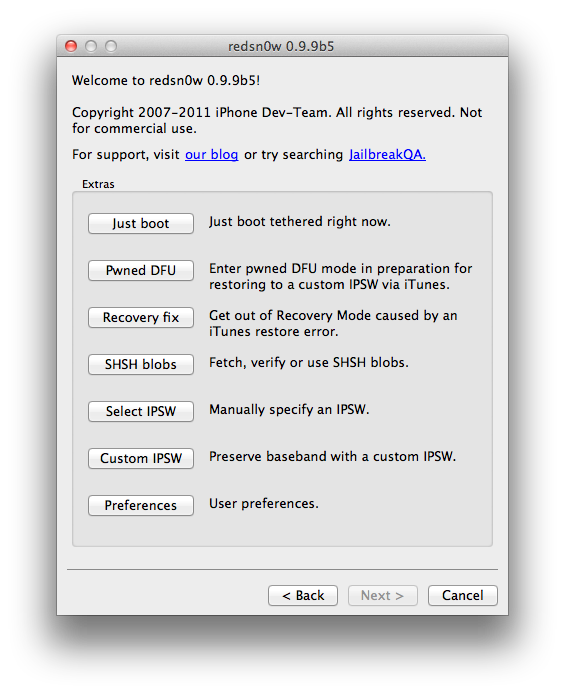 Now Redsn0w will start cooking your custom iOS 5 ipsw firmware
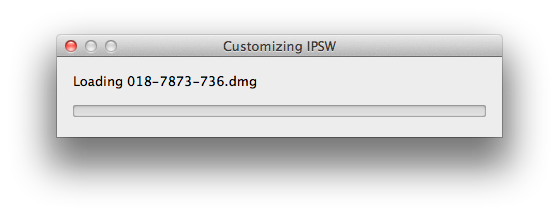 Step 3: Click on "Pwned DFU"
Step 4: Now make sure your device is both OFF and PLUGGED IN to the computer before you click “Next”.
 At this stage you will be presented with a screen where you will be guided on how to enter DFU mode. Quickly hold “Power” button and then while holding the “Power” button, you will now have to hold “Home” button too. Now after few seconds release “Power” button but keep holding “Home” button until installation begins.
Step 5: Open iTunes 10.5 then Restore your iPhone 4 to the Custom iOS 5 ipsw (the file name begins with NO_BB).
Congratulations, Now you can unlock iPhone 4 on iOS 5 with Gevey SIM and here's a video show you how to use Gevey SIM :
sherif_hashim@
@Mr7alawa u just has to preserve the BB that work with Gevey you are on now, use custom No_BB ipsw generated thru the latest redsn0w
Before I show you how to unlock iPhone 4 on iOS 5 with Gevey SIM - Here's what we gonna do :
- You have to restore iPhone 4 with custom iOS 5 ipsw with Redsn0w 0.9.9b5 (or above) to preserve the unlockable baseband.
- Then you are able to unlock iPhone 4 on iOS 5 with Gevey SIM.
- Download Redsn0w 0.9.9b5 for Mac / Windows
- Download iOS 5.0 ipsw for iPhone 4
- Download iTunes 10.5 for Windows and Mac
Step 1: Connect your iDevice with your PC via USB and open Redns0w you just downloaded above.
Step 2: Start Redsn0w, press on "Extras" > "Custom IPSW" and then point Redns0w to iOS 5 ipsw firmware that you downloaded above.
Step 4: Now make sure your device is both OFF and PLUGGED IN to the computer before you click “Next”.
Step 5: Open iTunes 10.5 then Restore your iPhone 4 to the Custom iOS 5 ipsw (the file name begins with NO_BB).
Congratulations, Now you can unlock iPhone 4 on iOS 5 with Gevey SIM and here's a video show you how to use Gevey SIM :
sherif_hashim@
@Mr7alawa u just has to preserve the BB that work with Gevey you are on now, use custom No_BB ipsw generated thru the latest redsn0w
Langganan:
Komentar (Atom)