Rabu, 28 September 2011

Watch iPhone 5 Event Live Streaming Online

Historically Apple has tried its best to avoid live streaming of their product launches and developer events on the web. But they did surprise us all when they live streamed the iPod music event last year. So, there is a glimmer of a hope that Apple might pleasantly surprise us all over again for this iPhone 5 event. If at all they decide to live stream the iPhone 5 event, it should be available below.
Watch iPhone 5 event live streaming online


We will surely be updating this post if we get to know any official or unofficial links to watch the event live. Note that Apple restricts the live stream to those using a Mac running Safari on Mac OS X, an iPhone or iPod touch running iOS 3.0 or higher, or an iPad!

Other possible live streaming links – Twit Live TV and LiveTechEvents, though the chances are slim.

The start times as per different timezones-
07:00AM – Hawaii
10:00AM – Pacific
11:00AM – Mountain
12:00PM – Central
01:00PM – Eastern
06:00PM – London
07:00PM – Paris
09:00PM – Moscow
Continue reading →

Selasa, 27 September 2011

SYSTEM Manager for iPhone & iPod Touch Version 6.1

Who Needs This App:

• Are you experiencing any device related problem?
• Does loading an Application or Game seem to take long time and want to know the reason?
• Are you experiencing memory warning or any unwanted memory error?
• Do you want to avoid restarting your iPad to speed up?
• Want to know which applications and system process are continuously running on background?
• Are you curious about battery life?
• Do you need assistance to boost battery life?
• Does your WiFi or 3G network perform as you expect?


If answers are “YES” then you need this application.


♦ BOOST iPhone and iPod Touch SPEED BY INCREASING FREE MEMORY.

♦ Perfect PROCESS MONITORING app for your iOS 4

♦ Get the best performance from your device using SYSTEM.


The only professional app in store can help you to know a lot about your device.


- Have you ever faced any device related problem?
- Does your iPhone, iPod Touch work slow than before and want to find out the reason?
- Want to sweep memory?
- Do you have low runtime memory problem on device?
- Want to know which applications and system process are continuously running on background?
- Are you curious about battery life?
- Do you need assistance to boost battery life?
- Does your WiFi or 3G network work perfect?

All answers you can get from single application. Don't miss it to get for lifetime. We frequently release updates to ensure best performance of device.


Key features :

☆ Memory
✔ Real time Wired, Active, Inactive memory status display using Pie-Chart and Graph.
✔ Boost device speed by increasing free memory space. To increase free memory just open 'Memory' tab and hold for a moment. SYSTEM will automatically sweep memory and increase FREE MEMORY.


☆ Process
✔ Running Background Applications & Other System Processes list display.
✔ For iPhone 3G, 3GS and iPod Touch running below iOS4 user, when you sweep memory from 'Memory' tab then SYSTEM will terminate unused running application too.


☆ Disk
✔ Disk space status presentation using Pie-Chart.
✔ Total songs information.


☆ Battery
✔ Full charge and other status alarm.
✔ Visualization of battery life.
✔ Estimated full recharge time.
✔ Battery maintenance alert for full cycle charge.
✔ Trickle Charge to max battery capacity.
✔ Battery life saving tips
✔ Visualization of battery charging by animation.
✔ Configurable Full Charge & Maintenance alert.


☆ System, Network & CPU
✔ Display device Model, Operating System with version.
✔ Cellular data network & WiFi network status.
✔ Wifi & Cell phone IP and MAC Address
✔ CPU and Bus Frequency.


✪Tips✪:
1. Tap on the yellow text(UDID) of System screen to see your cell number. (Available for iOS4 below)
2. To stop alarm tap on bell of Battery screen.

What's new in Version 6.1
Design:
- New user interface

Battery Tab:
- Auto adjust battery health on first charge to get more accurate "100% recharge time"
- 100% charge alarm

System Tab:
- Auto network state update
- Internet connection speed test feature

Process Tab:
- Help

Note: Please full charge your battery from 5% to 10%, keep opening "SYSTEM Manager" to auto adjust battery health.


DOWNLOAD:
fileape » download

OR
FileDude - Super Simple File Hosting

OR
fileape » download
Continue reading →

Fix iTunes Error 3001, 42110, 5103 When Downloading Movie

When you try to download movie rental from the iTunes Store you may experience an error message 3001, 42110, or 5103 .We will try to give you the trusted solution to these errors . We wish that would help all iOS devices users when experiencing these errors.


How Fix iTunes Error 3001, 42110, 5103 :

If you have the most recent version and are still unable to download your rental, you may be able to resolve your issue by removing the "SC Info" folder. To do so, follow these steps:
For Mac OS X :
1-Quit iTunes and any other open applications so only the Finder is open.
2-Click Go > Go to Folder.
3-Type /Users/Shared/SC Info and click Go.
TS1597- 1
4-If Finder is not set to column view you can set it by choosing View > as Columns.
5-Select the SC Info folder and move it to the Trash by choosing File > Move to Trash.
6-Open iTunes and choose Store > Check for available downloads.
7-After your rental finishes downloading, choose Store > Authorize.
8-Enter your account name and password, then click the Authorize button.
For windows xp :
1-Open My Computer from the desktop or Start Menu.
2-From the Tools menu, choose Folder Options
TS1597_2
3-Click View tab.
4-In the "Advanced settings" pane under "Hidden files and folders," make sure that the "Show hidden files and folders" option is selected.

TS1597_03-itunes_windows_xp-show_hidden_files-002-3n
5-Click OK.
6-Navigate to the following location by either typing it into the address bar, copying and pasting it into the address bar, or clicking through the folder hierarchy listed:
C:\Documents and Settings\All Users\Application Data\Apple Computer\iTunes\
7-Right-click the SC Info folder shown and on the shortcut menu, choose Delete.
TS1597_4
8-Restart the computer.
9-Open iTunes and choose Store > Check for available downloads.
10-After your rental finishes downloading, choose Store > Authorize.
11-Enter your account name and password, then click the Authorize button.
For windows 7 & vista :
1-From the Start menu, choose Computer.
2-From the Organize menu, choose Folder and Search Options.

TS1597_5
3-Click View tab.
4-In the "Advanced settings" pane under "Hidden files and folders," make sure that the "Show hidden files and folders" option is selected.
TS1597_06-itunes_windows_7_show_hidden_files-002-en
5-Click OK.
6-Navigate to the following location by either typing it into the address bar, copying and pasting it into the address bar, or clicking through the folder hierarchy listed:
C:\Documents and Settings\All Users\Application Data\Apple Computer\iTunes\
7-Right-click the SC Info folder shown and on the shortcut menu, choose Delete.

TS1597_7
8-Restart the computer.
9-Open iTunes and choose Store > Check for available downloads.
10-After your rental finishes downloading, choose Store > Authorize.
11-Enter your account name and password, then click the Authorize button.
Continue reading →

Apple Confirming Officially iPhone 5 Event On October 4th!

Well well well, Apple has announced officially that it's holding the iPhone 5 event on October 4th as previously rumored. Apple has issued media invitations for the special iPhone event at the company's Town Hall auditorium at its headquarters in Cupertino, California.


Click here to enlarge

Apple's iPhone 5 event scheduled to begin at 10:00 AM Pacific Time. The event invitations carry the tagline "Let's talk iPhone"
We’ve just gotten word that Apple will be holding an event on October 4th — most likely to announce the next version of its wildly popular iPhone. But who knows what else is in store? Based on the invite (the image above), it’s likely that Tim Cook and company aren’t going to be dipping into too much else, so don’t let your imagination go wild.
Apple didn't announce what exciting secrets could be in store. I can't wait - check out event time based in your city time zone - Here.

Apple has officially announced that it's holding the iPhone 5 event on October 4th. Apple started to send invitations for iPhone 5 event at the company's Town Hall auditorium at its headquarters in Cupertino, California. The event scheduled to begin at 10:00 AM Pacific Time. In the below schedule, we have converted this time for all countries and cities worldwide. Check the time of Apple iPhone 5 event according to your city after the jump.


Click here to enlarge
Continue reading →

Minggu, 25 September 2011

How to Save Your iPhone/iPad/ipod SHSH Blobs Using RedSnow

How to Save Your iPhone SHSH Blobs Using RedSnow (Windows)  

 
These are instructions on how to backup and save your iPhone SHSH Blobs to Cydia using RedSn0w for Windows.

Step One
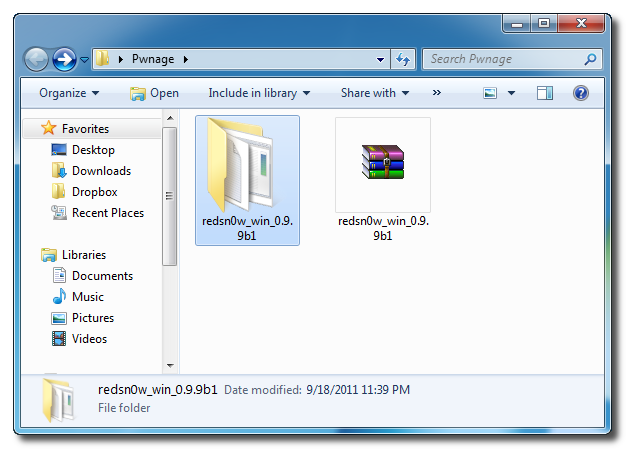
Create a folder on your desktop called Pwnage

Download RedSn0w from 0.9.9b1 here and place it in the Pwnage folder.

Extract the RedSn0w zip file into the same folder.


Step Two
Launch the redsn0w application from the redsn0w folder we just extracted.

**Windows 7 users should run the redsn0w executable mode as an administrator in Windows Vista compatibility mode. You can do this by right clicking the executable and selecting Properties from the contextual menu.


Step Three
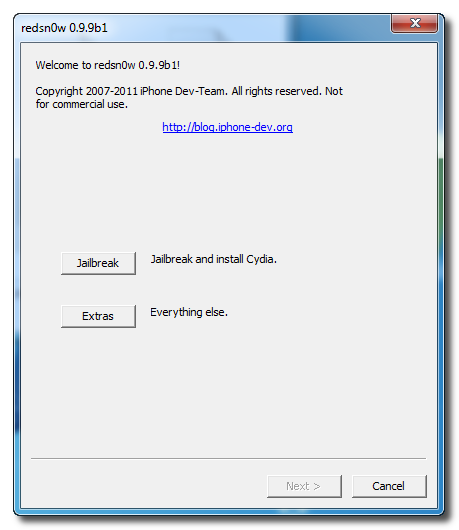
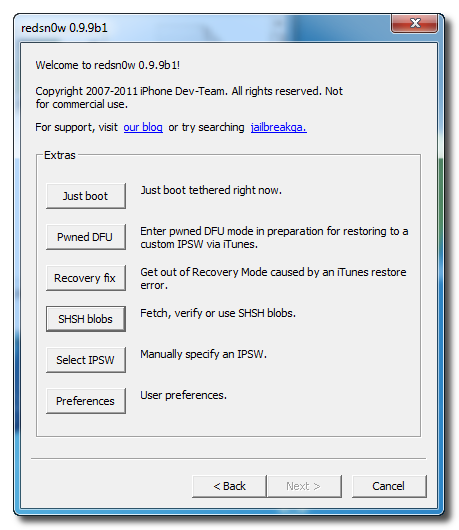
Once RedSn0w opens click the Extras button


Step Four
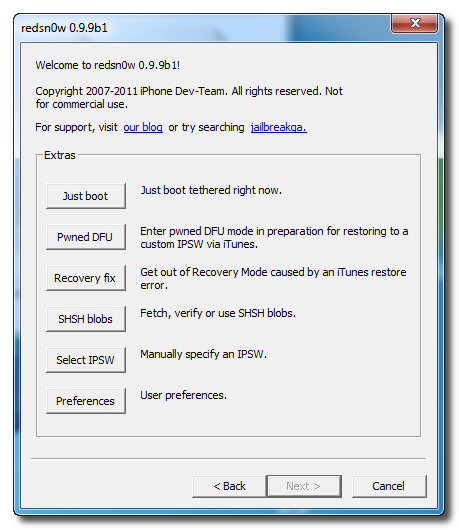
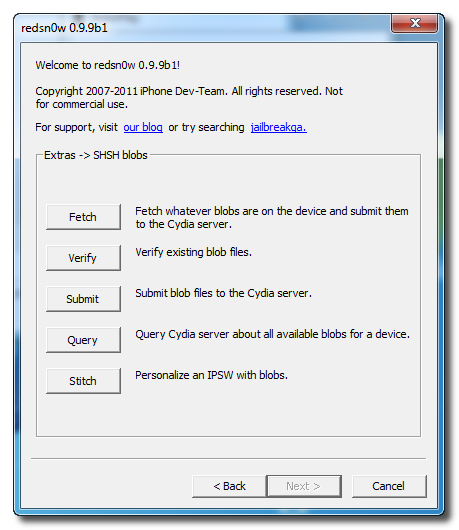
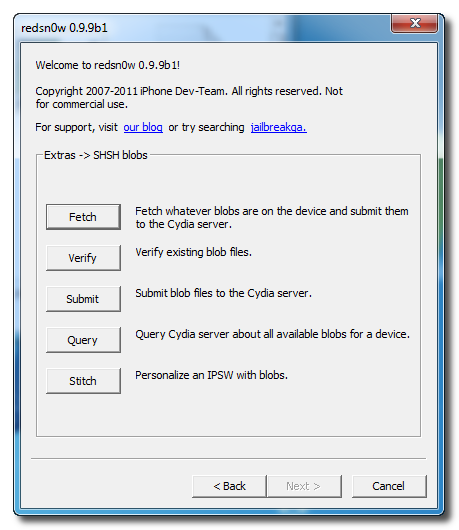
Click the SHSH blobs button from the Extras menu.


Step Five
Click the Fetch button to fetch the SHSH blobs on your device and send them to the Cydia server for storage.


Step Six
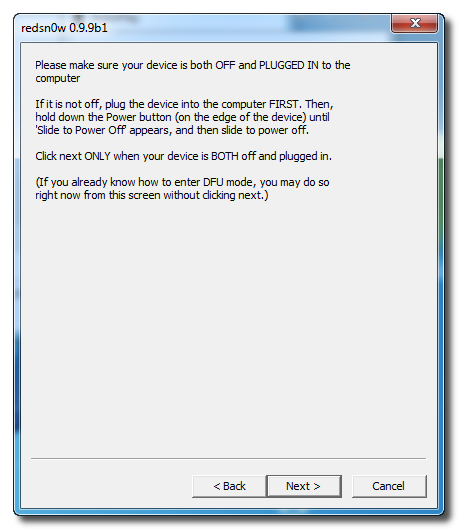
Please plug your iPhone into the computer and make sure its OFF then click the Next button


Step Seven
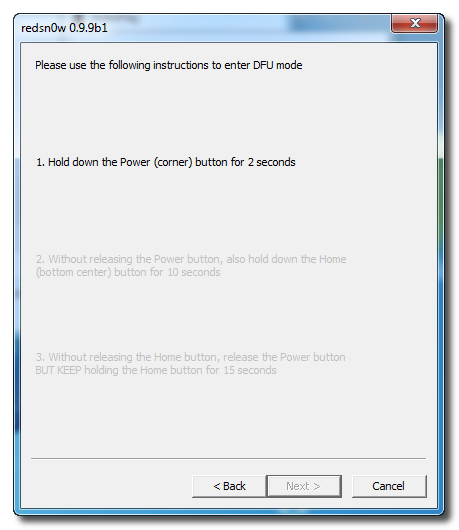
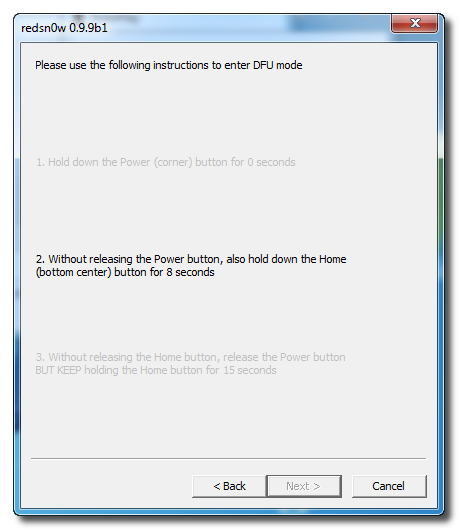
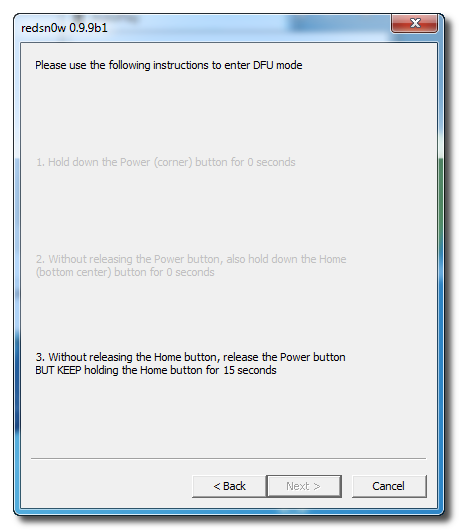
RedSn0w will now guide you through the steps to get into DFU mode. You can find more help with DFU mode here


Hold down both the Home button and the Power button for 10 seconds.


Release the Power button and continue holding the Home button until RedSn0w detects the device.


Step Eight
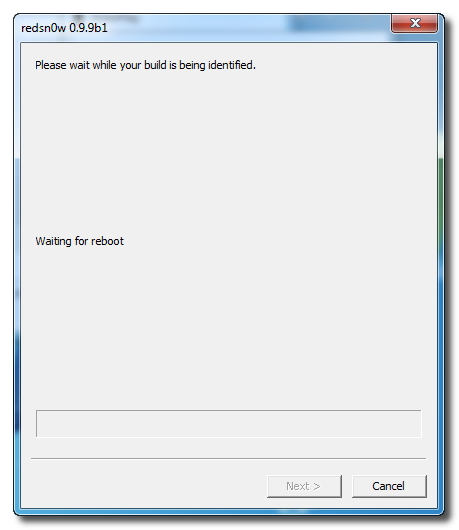
Your iPhone will now reboot


Step Nine
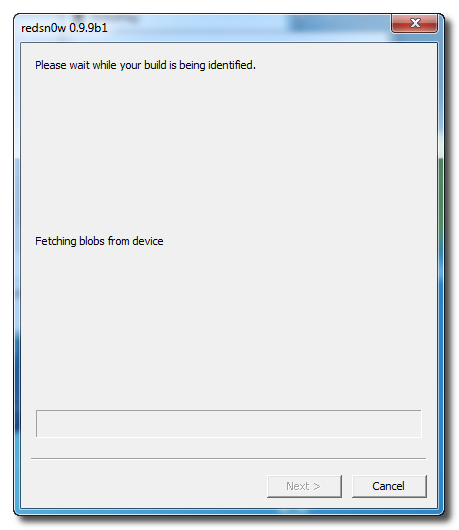
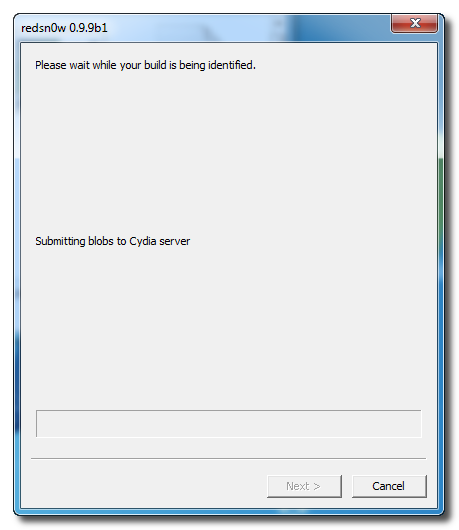
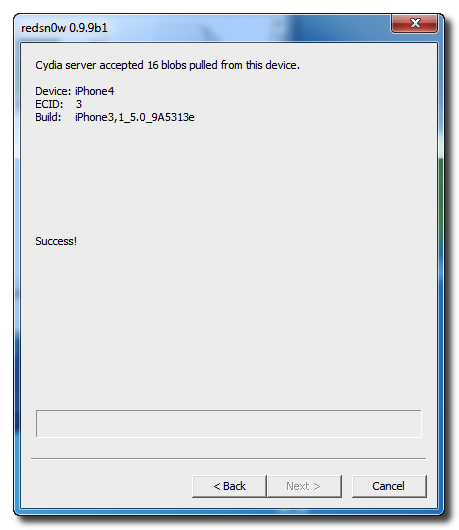
RedSn0w will then begin fetch the SHSH blobs from your device and submit them to Cydia.


Step Ten
Once this is complete you will be notified that your submission was a success. Click the Back button to return to RedSn0w.


Step Eleven
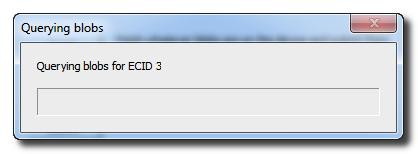
Click the SHSH blobs button and then click the Query button to make sure Cydia has your blobs saved.


Step Twelve
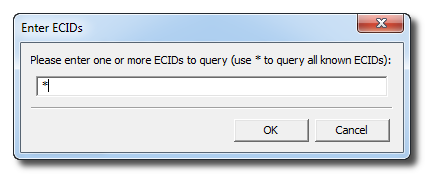
Enter * into the ECID textfield and click OK to check all your devices.


Step Thirteen
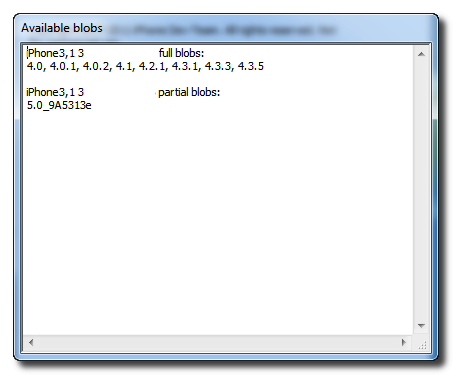
RedSn0w will now query Cydia and display the list of stored blobs.


Important:
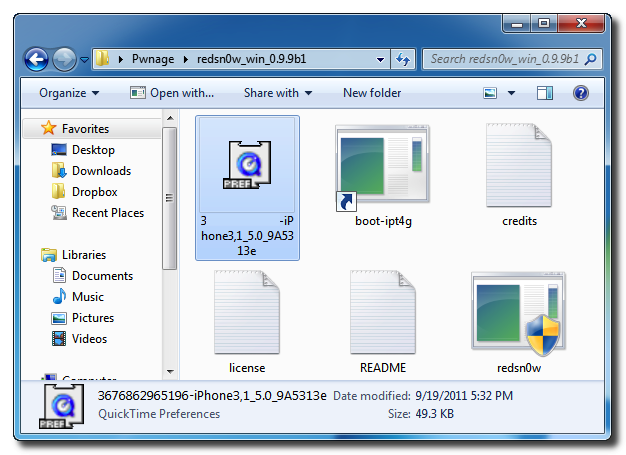
RedSn0w also saves your blobs in a plist located within the RedSn0w folder. We would recommend keeping these for added safety.
 
 How to Save SHSH Blobs Using RedSn0w (Mac)

In this topic we will introduce how to backup and save SHSH to Cydia using Redsn0w for Mac. For who don't know, Redsn0w 0.9.9b1 won't ask you to choose ipsw file when you jailbreak your iPhone, iPod or iPad as it will automatically detect the best solution for you (tethered or untethered jailbreak).

Let's see how to Save iPad SHSH Blobs using Redsn0w :

Step one :
Create a folder on your desktop and rename it with Pwnage , then Download RedSn0w 0.9.9b1 from here and place it in the Pwnage folder then Extract the RedSn0w.zip file into the same folder.
59134-500
Step two :
Run Redsn0w application from the folder we just extracted.
Step three :
When RedSn0w opens click  Extras button.
59120-500
Step four :
Click SHSH blobs button from the Extras menu.
59121-500
Step five :
Click the Fetch button to fetch the SHSH blobs on your device and send them to the server of Cydia.
59122-500
Step six :
Conect your iPad to the computer while your iPad is OFF then click the Next button
59123-500
Step seven :
Now you will be guided by Redsn0w through the steps to get into DFU mode.
59124-500
59125-500
59126-500
Step eight :
Your iPad will restart now.
59127-500
Step nine :
RedSn0w will then begin fetch the SHSH blobs from your device and submit them to Cydia.
59128-500
59129-500
Step ten :
When your submission is completed you will be notified. Click the Back button to return to RedSn0w.
59137-500
Step Eleven :
Click the SHSH blobs button then click the Query button to make sure Cydia has your blobs saved.

59130-50059131-500
Step twelve :
Write * into the ECID text field and click OK to check all devices
59132-500
Step Thirteen :
Now RedSn0w will query Cydia and show the list of stored blobs.
59135-500

59140-500
Tip
RedSn0w also saves your blobs in a plist located within the RedSn0w folder. We would recommend keeping these for added safety.
59136-500
Continue reading →

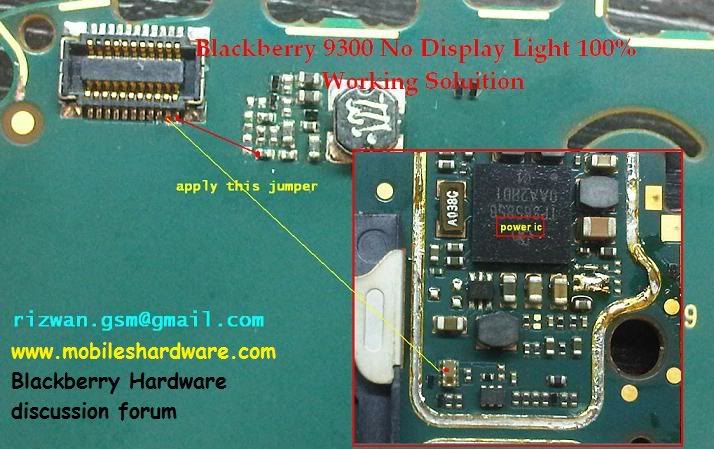
Blackberry 9300 No Display Light 100% Working Soluition


don't forget to press thanks

Best Regards
Rizwan
Continue reading →

Rabu, 21 September 2011

Fix iTunes Error 1603 When Restoring iPhone in iTunes

Want to Fix iTunes Error 1603 ? Well, you may see this iTunes error 1603 when you trying to restore your iPhone in iTunes. Error 1603 gives you the following error message "The iPhone could not be restored. An unknown error occurred. Error 1603". Let's check how to fix iTunes error 1603 after the jump.


Click here to enlarge

How to fix iTunes error 1603 :

Below I will show you some tips that help you to fix iTunes error 1603 :

Tip 1: Check for iTunes updates :
  • Windows: Choose Help > Check for Updates.
  • Mac: Choose iTunes > Check for Updates.
Tip 2: Restart your Computer
  • Restart your computer may help to fix iTunes error 1603

Tip 3: Try different USP Port
  • Try to connect your iPhone with computer via another USB port, then try to restore using iTunes.
Tip 4: Restart Apple Mobile Device Service (Windows Only) :

Restoring Apple mobile device service on Windows XP or Windows Vista / 7 may help you to fix iTunes error 1603 while restoring your iPhone.

Windows XP
  1. Close iTunes and disconnect iPhone.
  2. Choose Start > Control Panel.
  3. Inside the Control Panel, open Administrative Tools.
  4. Open Services.
  5. Select Apple Mobile Device and click Stop the service as shown below:
    Click here to enlarge
  6. After the service is stopped, click Start the service.
  7. After the Apple Mobile Device service has started again, open iTunes and connect iPhone.
  8. Select iPhone in the Source list, click the Summary tab, and then click Restore.
Windows Vista
  1. Close iTunes and disconnect iPhone.
  2. Click the Windows Start button
  3. In the Start Search field type "Services."
  4. In the Programs section of the search results, Click "Services".
  5. Select Apple Mobile Device and click Stop the service as shown below:
    Click here to enlarge
  6. After the service is stopped, click Start the service.
  7. After the Apple Mobile Device service has started again, open iTunes and connect iPhone.
  8. Select iPhone in the Source list, click the Summary tab, and then click Restore.
Tip 5: Reset the iPhone sync history and restore on Windows and Mac - How to do this ?

Windows
  1. Open iTunes
  2. On the Edit menu, click Preferences.
  3. Click the iPhone tab.
  4. Click the Reset Sync History button.
Mac
  1. Open iSync.
  2. Choose iSync > Preferences.
  3. Click the Reset Sync History button.
Tip 6: Create a new user account - How to do this ?

Windows Vista and Windows XP
  1. From the Start menu, choose Control Panel.
  2. Open User Accounts.
  3. Select Create a new account and follow the instructions to complete the account setup process.
  4. Once the new account is created, choose Log Off from the Start menu.
  5. Log in to the newly created user account.
Mac OS X
  1. Choose Apple menu > System Preferences.
  2. Choose View > Accounts.
  3. Click the "+" (you may need to authenticate to be able to click this).
  4. Give the new user a name and short name and enter a password.
  5. Select the checkbox for "Allow user to administer this computer". This makes the user an administrator user.
  6. Click Create Account.
If you the above tips didn't work with you and fixed iTunes error 1603 you have to download iReb - Click Here - as it will help you to bypass iTunes error 1603.
Continue reading →