Kamis, 24 Februari 2011

Sony moves to the next level, police raid graf_chokolo home!

It seems Sony is not happy with the long process of using American civil courts to fight off the PS3 hackers, and have decided to step up the war game to the next level, and have now got the German police on their side to raid early this morning graf_chokolo's home and take all his computers!


The following is some of the quotes taken from his blog:


Originally Posted by graf_chokolo
February 23, 2011 at 12:26 pm
Guys, i don’t joke, it’s serious.
And to prove it, i kept my word and uploaded all my HV reversing stuff.
Upload it everywhere so SONY couldn’t remove it easily. Grab it guys, it contains lots of knowledge about HV and HV procs.

Here is my HV bible: Sendspace.com upload.com 2shared.com <- Coolstuff.rar [164mb]
 
Mirror on 1Gbit : graf_chokolo holy bible for the PS3

upload is done in about 1,5 hours, since i'm on 3g connection now
 
Continue reading →

Selasa, 22 Februari 2011

DiskAid transfers Files to iPhone, iPad & iPod touch, USB External Drive

Download DiskAid
DiskAid gives access the iPhone or iPad file system
Browse files and folders
DiskAid gives easy access the file system of the iPhone, iPad or iPod touch.
Use the iPhone USB as flash drive and bring your files everywhere 
USB Storage
Use the iPhone as external storage and bring your files everywhere.
Upload any files and folder from your computer to your iPhone or iPad
Transfer any kind of file
Transfer files to iPhone/iPad.
View them on your device using FileApp.
All iOS mobile devices from Apple supported
Connect: iPhone, iTouch, iPad
DiskAid is fully compatible with all Apple iOS mobile devices.
File sharing enabled for 3rd party app support
Third party apps
Connect to FileApp and all others third party apps installed on your device.
Copy your pictures from your iPhone to your computer
Copy Camera Roll pictures
Easy access and copy of pictures from iPhone’s or iPad’s Camera Roll to desktop.
Transfer Text Messages (SMS)
Transfer Text Messages
One-click copy of iPhone text messages (SMS) to Mac or PC.
DikAid is a safe and secure application
Safe and secure
Secure connection via USB without jailbreak (needed for root access).
Easy to use  - user friendly
User friendly
Intuitive drag and drop application window
‘non-geeky’ interface for easy operation.
Free trial version available : try brefore you buy
FREE !
and install DiskAid
DiskAid works with iOS 4
Compatibility
iTunes 10 and iPhone OS 3.x to iOS 4.x
Works with or without jailbreak.
DiskAid is compatible with PC Windows and Mac OS X computers
PC Windows & Mac OS X
Use DiskAid to transfer files from one platform to another, or from home to office!

See What DiskAid Can Do for You

I want to transfer files to my device via USB and see them on the go!
  • DiskAid will automatically discover every folder and application that is compatible with FileSharing and will let you copy documents, files and media to your device from your computer back and forth. With FileApp or FileApp Pro installed, you will be able to browse, read and watch them on the go!

I Want Disk Use on the iPhone (iPhone USB Drive)
  • There is no such thing as the ‘Disk Use’ on the iPhone, and I cannot use my iPhone as an external storage like I used to on my iPod Classic to copy files from a computer to another. Thanks to DiskAid desktop application, I can transfer files using the USB cable.

Access Data on the iPhone

Apps File Sharing Support
  • It is annoying to launch iTunes for file transfers to apps or to fetch files stored in these apps document’s folders. DiskAid automatically displays every app’s icon and lets me easily access them and rapidly transfer data, back and forth!
Download DiskAid
CRACK
http://hotfile.com/dl/99491476/c6ba556/DiskAid.v4.51-CRD.rar
Continue reading →

Transfer all your iphone files to computer


here is the crack :
RapidShare AG, Cham, Switzerland

Here is the password of the file :
87ue9o

Transfer all iphone files to computer

Continue reading →

Find your iPhone Backup Location

3gsiphone If you’ve looking for the location of your iPhone Backup files, then look no further. Whether you use Mac OS X or Windows, the iPhone backup process is basically the same, iTunes backs up all of your iPhone files and identifier information  to a specific directory in the following locations… but first a warning: if you don’t know what you’re doing, do not mess with these iPhone backup files! Ok on with the backup locations:

iPhone Backup Location for Mac OS X

in Mac OS X your iPhone files are backed up at the following location:
~/Library/Application Support/MobileSync/Backup/
The (~) symbol signifies your home directory, which is the same place all your other personal documents are stored.

iPhone Backup Location for Windows 7, XP, and Vista

Windows XP stores all of your iPhone backup files in this location:
C:\Documents and Settings\user\Application Data\Apple Computer\MobileSync\Backup
Windows Vista and Windows 7 backs up the iPhone files to here:
C:\Users\user\AppData\Roaming\Apple Computer\MobileSync\Backup

Obviously if your main drive is not C: then you’ll have to change that, same goes for ‘user’
Note to Windows users: the Application Data and AppData directories and their contents (iPhone backups included) are considered ‘hidden’ so you will need to enable ‘Show hidden files’ within Windows Explorer before you will be able to see the files.

iPhone Backup notes
There’s various reasons you’d need (or want) access to the iPhone Backup files, but generally speaking you should be able to rely on iTunes to handle all your iPhone restoration and backup needs. If you’re interested in keeping your own backup copies though, say for Jailbreaking purposes, knowing the location of the iPhone backup is handy.

You’ll notice that the files in the directory are almost all unusual and randomized names, like ffb541c48e97051fff2b1f906577cbef71123c4fb.mdbackup, these are all automatically generated. There’s also a few xml files in the directory that have unique identifier information about your iPhone.
This probably goes without saying, but unless you know what you’re doing you should NOT edit any of these iPhone backup files! Editing or deleting any of these files could result in improper, malformed, or otherwise unreliable backups, and any other number of problems with your iPhone.
If you’re looking for a way to access your iPhone files through some kind of browser application rather than the Finder or Windows Explorer, you could try some of the apps out there, but many of them are poorly made in my experience.
Continue reading →

iPhone Backups Slow? How to Speed Up and Fix a Slow iPhone Backup

There are several reasons why backups can take forever on an iPhone, so here are a few tips you can try that should increase the speed of your iPhone backups and restores. Yes, these tips work on Mac OS and Windows, and for iPod Touch too.

Fix slow iPhone backups by deleting photos

If you have a large camera roll on your iPhone, you might be really slowing down your iPhone backups. This is because the iPhone backup process will copy all your pictures regardless of whether or not there have been any changes made to them. The solution? Regularly backup your iPhone photo’s and then delete the originals from the iPhone.
  • Launch iPhoto (or Image Capture or whatever app you use to backup photos)
  • Copy ALL images from your iPhone to your computer
  • Ensure that you have backed up all your iPhone photos to the computer
  • Delete ALL of the originals from the iPhone / iPod Touch
  • Proceed to backup as usual through iTunes
Your backups should now go much faster. It is no coincidence that this tip is recommended by Apple Support, because it works.
I’ll be the first to admit that I was skeptical of this solution until I tried it myself; I had 1,728 photos saved in my iPhone camera roll. After I backed them all up into iPhoto and deleted all the originals from the phone, my iPhone backups speed improved dramatically – I went from a painfully slow four hour backup process to a more reasonable 45 minutes with this tip alone.

Delete old and unused apps from your iPhone

If you aren’t using an old app anymore, delete it, there’s not much reason to keep it around on your iPhone anymore. Deleting these ancient apps can help to speed up your iPhone backups too, since there is less data to transfer at each backup or restore.

Remove unused media from the iPhone

Old apps aren’t the only thing that can slow down backups, so can media. We already discussed deleting photos from your iPhone and the big improvement that makes in backup speed, but deleting other media can help too. If you find yourself never listening to some ancient albums, or watching those old TV shows you copied over 8 months ago, just go ahead and delete them from the iPhone. Deleting video files seems to be particularly effective.

Regularly backup your iPhone

Allowing too much time to pass between backups can really increase the amount of time necessary to backup your iPhone. Try to keep regular backups of your iPhone, just get in a habit of making one full backup once or twice a month. I have noticed a direct correlation between the length of time a backup takes to complete and how often I perform full backups: the longer time that passes between backups the slower the backup will be.

I’m trying to install iPhone OS 4 and the backup and install is really slow, help!

Many users are reporting very slow backup and install processes for updating their iPhone and iPod touch to iPhone OS 4. If you are experiencing this problem, I would highly recommend letting the backup and install run during a time you will not be using the phone for several hours, ideally overnight. Just start the iPhone OS 4.0 install and backup process and let it run while you sleep, you will wake up to the new OS4 being installed and you will have made a recent backup, which will speed up future backups and installations as well.

My iPhone backups are still extremely slow, help!

If you’ve tried all these methods and your iPhone backups are still extremely slow (and by extremely slow I mean well over a few hours, I’ve heard reports of up to 9 hours… yikes!) then you can try the last resort: Restore your iPhone to it’s original factory settings. Remember that by doing this without a backup you will LOSE ALL DATA ON YOUR IPHONE including all media, music, apps, phone numbers, notes, everything, so be absolutely certain that you don’t mind restoring to factory default settings without a backup. This almost always resolves the slow backup problem, but if you don’t have anything to restore to then you will have a completely blank iPhone with nothing on it. There are some suggestions that restoring the iPhone is necessary when there has been a filesystem corruption, which can lead to extremely slow backup speeds and other strange behavior. Again, you will lose all your iPhone data so this is a last resort.
Continue reading →

How to Backup your iPhone

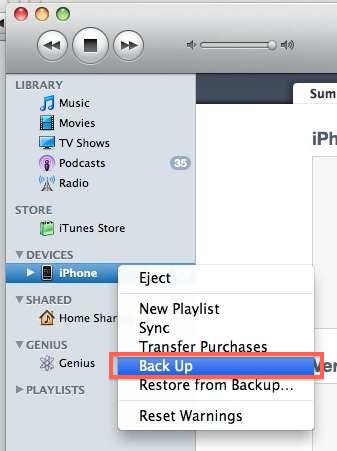
create iphone backup By default your iPhone will automatically sync and create a backup each time your iPhone is connected to your computer. If you want to manually create an iPhone backup though, it is very easy.
How to start an iPhone backup:
  • Plug your iPhone into your computer
  • Launch iTunes
  • Select your iPhone in the ‘DEVICES’ list
  • Right-Click on your iPhone
  • Select “Back Up”
  • Wait for iPhone backup to complete
This will create a backup of your iPhone that you will be able to restore from later, and the procedure is the same in Mac OS or Windows. It is a good idea to create a current backup before you download and install the latest iOS version.

Does this work to backup my iPod touch or iPad?

Yes, backing up an iPhone, iPod, iPod Touch, or iPad, is all the same process and handled through iTunes in the exact same manner.
Continue reading →

Free way to Transfer Photos from iPhone to computer

transfer photos from iphone
You can easily transfer Photos from your iPhone to your computer, the process is very similar whether you are on a Mac or PC. Regardless of what OS you are using, you’ll need your iPhone, the included USB cable, and a computer to plug it into.

Transfer Photos from iPhone to Mac

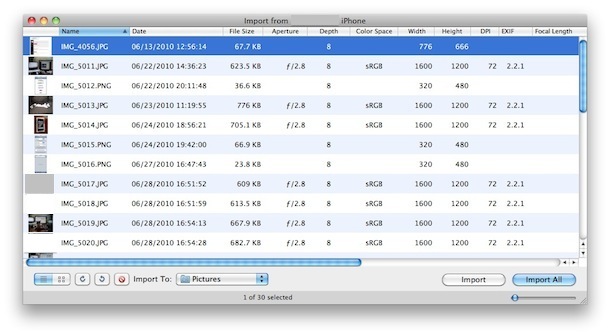
The easiest way to transfer pictures from your iPhone to your Mac is through Preview
  • Plug your iPhone into your Mac
  • Launch Preview
  • From the File menu navigate down and select “Import from iPhone…”
  • Select “Import All” to get all the pictures, otherwise individually select pictures and click ‘Import’
  • Look in your ~/Pictures/ folder for the photos from your iPhone
You can also transfer pictures to your Mac with iPhoto or Image Capture, which is just as easy.

Transfer Photos from iPhone to PC

On a Windows PC the easiest way to get pictures from your iPhone is to just use Windows Explorer, but there’s two ways to go about this:
  • Plugin your iPhone to the computer without iTunes running
  • Wait for a popup asking you what you want to do with the device
  • Select “View Content”
  • Find your photos through the folders that are displayed
  • Copy in Windows as usual
If your iPhone is already plugged into your PC, you can try this method:
  • Plugin your iPhone to your PC
  • Open “My Computer”
  • Find your iPhone, it will appear as any other camera would
  • Open iPhone to find your Photos
  • Select the pictures you want to copy to your computer and copy/paste them into the desired location on your PC
The Windows approach treats the iPhone more like a file system, but if you feel like it you can also use your favorite photo importing application to pull the pictures from the device as well.

You can also sync your photos using just iTunes on either Mac OS or Windows but that is more for iPhone backup purposes.
Continue reading →